Most people who use AI on a Word document do it the same way. They copy the text into a chatbot, ask for a fix, and paste the answer back. Then the trouble starts. The headings lose their style, the table comes back as plain text, numbering restarts, and there’s no way to tell what the AI changed. You end up reading the whole document again to find out, which is the very job you wanted help with.
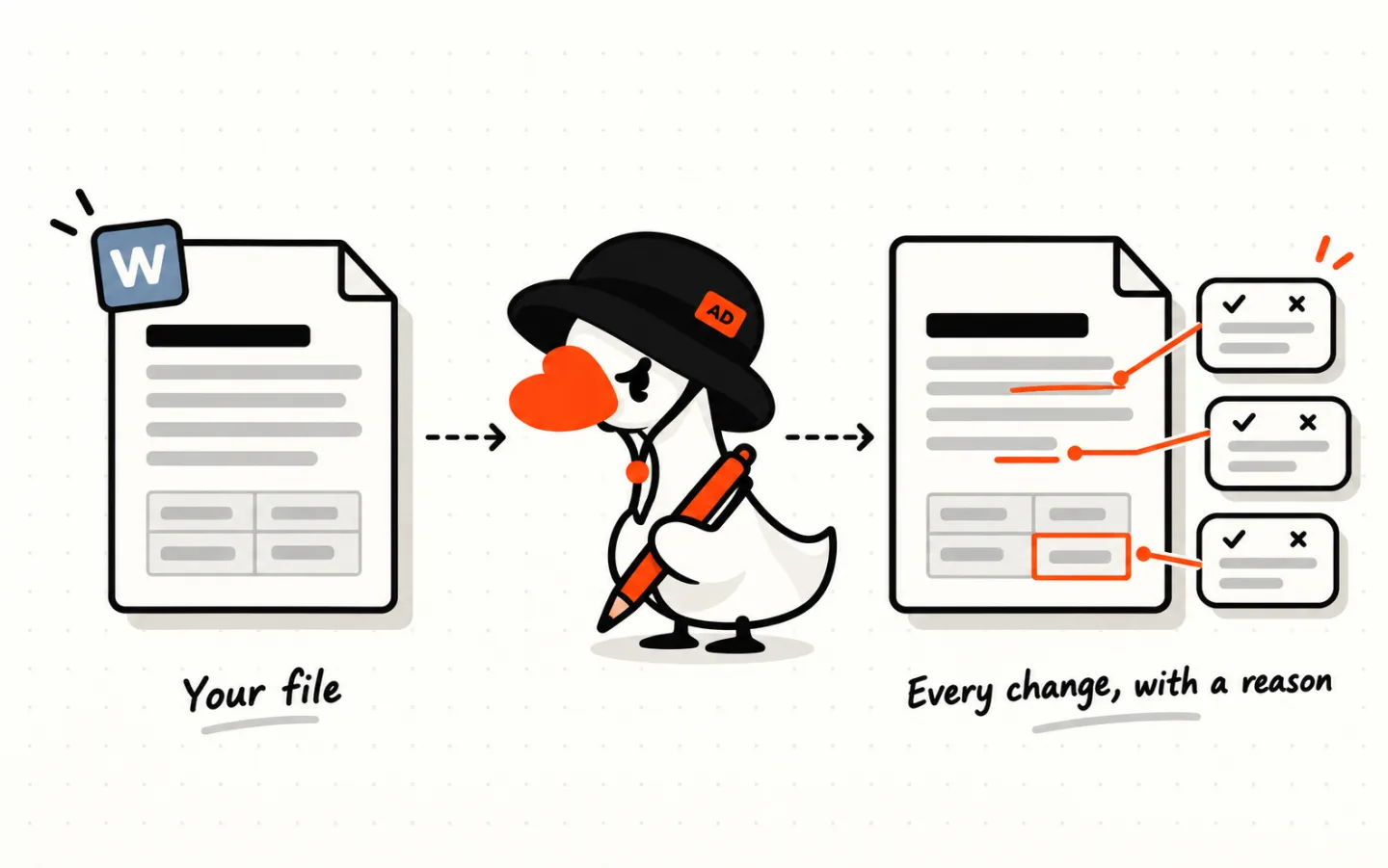
ArtiDock works the way a careful colleague does. It opens your document, changes only the places that need changing, and marks every change with Word’s Track Changes, with a comment saying why. The document opens right beside the chat, so you can read each change, accept it or reject it, and download a normal .docx that still has every redline and comment when you open it in Microsoft Word.
By the end of this guide, you’ll know how to hand a document to ArtiDock, how to review what it did, and how to turn it into a specialist that reviews your documents the way your team would.
What it does
- Edits the real file. ArtiDock works inside your document. It doesn’t write a new one from scratch, and it doesn’t give you text to paste back.
- Takes requests in plain words. “Make the contract match Appendix 2”, “Check the spelling”, “Change the name of Party B”, “Clean up the formatting”. No commands to learn.
- Shows every change. Insertions, deletions and formatting changes are all tracked, so nothing changes without you seeing it.
- Explains itself. Each change comes with a comment saying why it was made, pointing to the rule or the source behind it.
- Leaves the decision to you. A change counts only once you accept it. Accept or reject them one by one, or all at once.
- Opens beside the chat. The document shows in a Word-style editor next to the conversation. You chat, read and decide on the same screen.
- Gives you a real Word file. Download it and open it in Microsoft Word. The tracked changes and comments are there, exactly as if a person had reviewed it.
How to edit a Word document with AI
- Log in at app.artidock.ai and start a new chat.
- Click
+in the message box, chooseUpload attachmentand pick your.docxfile. You can also drag the file straight into the chat. - Say what you want done, as you would to a colleague. For example: “Fix the title of this syllabus and format the document properly.”
- Send the message. ArtiDock reads the document first, then makes its changes. You can follow each step in the chat as it works.
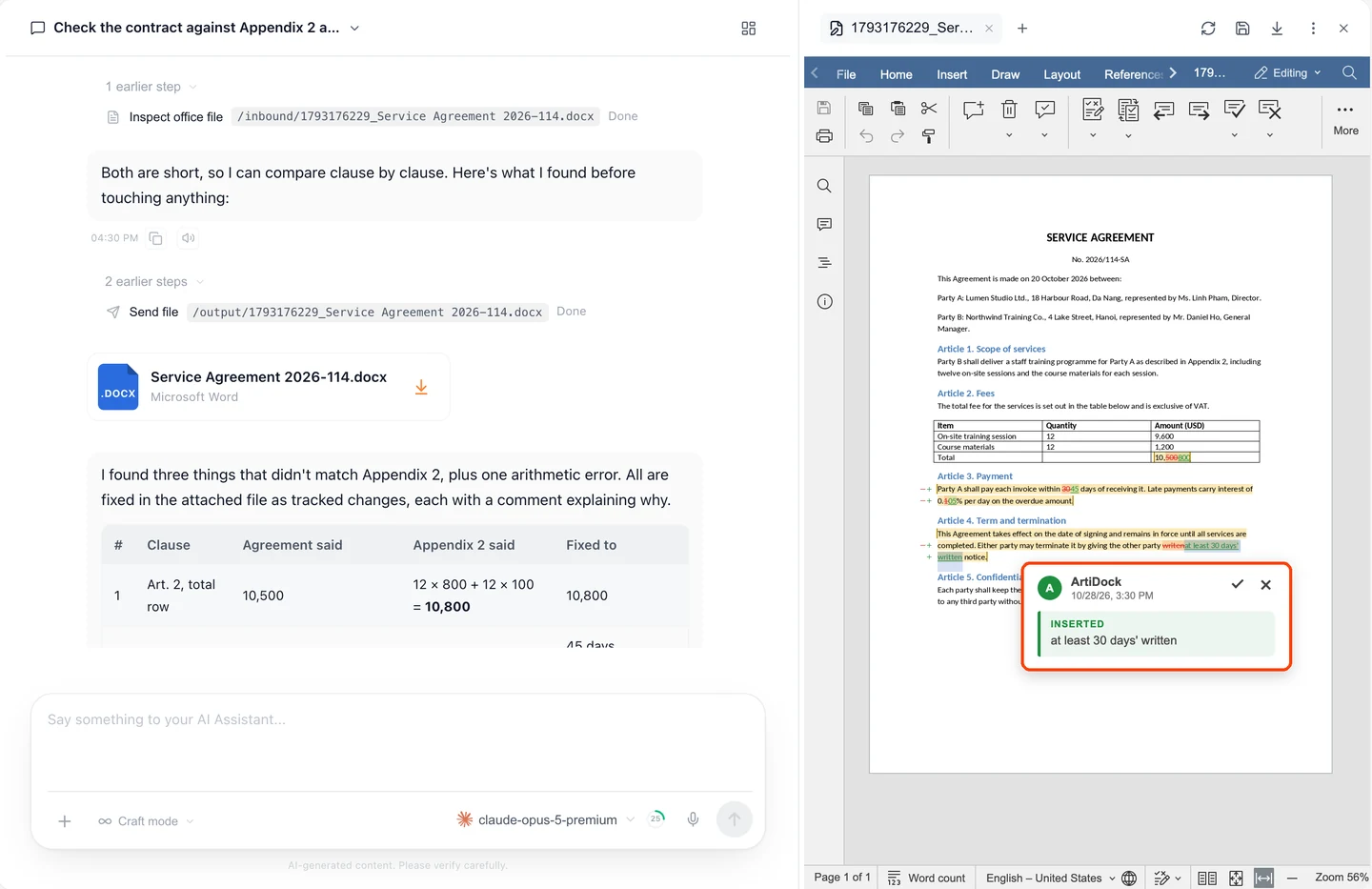
- Click the file card in the chat. The document opens in the panel on the right, with ArtiDock’s changes marked in colour. If the panel is already open, it reloads by itself and takes you to the newest change.
Your original file stays as you uploaded it. ArtiDock saves the edited version as a copy with the same name, so you can always go back.
Tip: One message can carry several requests. “Fix the spelling, make all the headings the same style, and update the table of fees to match the appendix” works fine, and ArtiDock handles them in one go.
Say what you want in plain words
You don’t need to point at paragraphs or describe the formatting in technical terms. Say what you’d say to a person.
Wording
- “Proofread this report and fix spelling and grammar. Don’t change the meaning.”
- “Change Party B from Minh Long Co., Ltd. to Minh Long Trading JSC everywhere.”
- “Make the tone of the cover letter more formal.”
- “Shorten the executive summary to half a page.”
Formatting
- “Format this document properly: one style for headings, one for body text, centred title.”
- “Make the table header bold with a light grey background.”
- “Put all the dates in the same format.”
Structure
- “Add a row to the fee table for the extra training session.”
- “Remove the empty lines that break the numbering of the review questions.”
- “Add a comment on every clause that has no deadline.”
Review AI edits with Track Changes
Each change in the document is coloured: new text is underlined in green, removed text is struck through in red, and every line that changed is marked in the left margin, so you can spot them at a glance. Select a change and a small card pops up beside it, showing what was inserted or deleted, who made it and when. ArtiDock signs its changes as ArtiDock, so they’re easy to tell apart from your own.
Accept or reject one change at a time
- Click a change in the document. Or open the
Collaborationtab at the top of the editor and use the arrows to jump from one change to the next. - Click the tick on the card to accept the change. It becomes part of the document.
- Click the cross to reject it. The text goes back to exactly what it was before.
Work down the document like this and you’ve reviewed every change, without reading the parts that didn’t change.
Accept or reject everything
When you trust the whole batch, open the Collaboration tab, then choose Accept All Changes from the Accept menu, under the tick. Reject All Changes, in the Reject menu under the cross, puts the whole document back the way it was.
Save and keep going
Click Save at the top of the panel to keep your decisions. If you’d rather change something by hand, type in the editor like you would in Word: it’s a full editor, not a preview.
While ArtiDock is working on a reply, the document is locked so you and the agent don’t edit the same lines at once. The panel says Read-only while the agent works, and opens again as soon as the reply is done. If you’ve made edits of your own and send another message, ArtiDock saves them first, so it always works on your latest version.
Tip: Not happy with a change? Don’t just reject it. Tell ArtiDock why: “The penalty should stay at 0.05% a day, the appendix is wrong there.” It fixes the change and remembers your reason for the rest of the chat.
Keep your formatting: it edits, it doesn’t rewrite
This is the biggest difference from copying text into a chatbot.
ArtiDock only touches the words, cells and formatting it was asked to change, and leaves the rest of the file alone:
- Styles stay: headings, fonts, colours and spacing.
- Tables stay: merged cells, borders, widths and shading.
- Numbering and lists keep counting the way they did.
- Images, fields, page numbers, headers and footers stay in place.
That matters most on documents your organisation has spent years shaping, such as contract templates, official letters and syllabi built to a house standard. A rewrite would quietly flatten all of that. An edit leaves it alone.
ArtiDock already works on real documents every day, at universities, banks, and HR and admin offices: syllabi and course materials, contracts, official letters and forms. Real Word files are full of surprises, from templates passed down for years to layouts built by hand, and every new case makes ArtiDock better at handling them, so improvements and fixes ship all the time. If a file ever comes back looking wrong, your original is still there untouched, and a note through Help and feedback helps us fix it for everyone.
And because only the changed parts are marked, a review that used to mean reading 40 pages becomes reading the 12 places that changed.
Every change has a reason
A good reviewer never changes a number without saying why. Neither does ArtiDock.
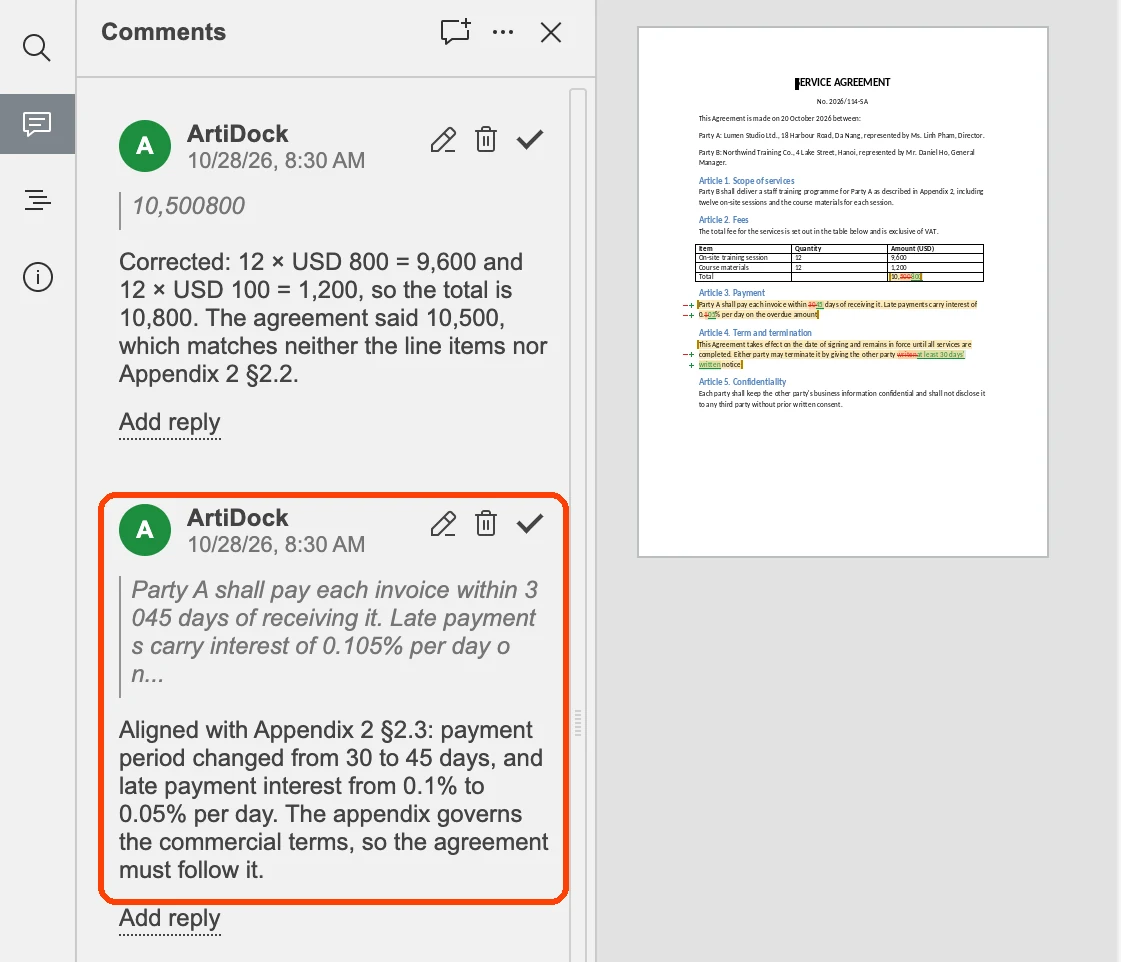
With each change, ArtiDock leaves a comment that explains it: which rule it follows, or where the right value comes from. Click the speech bubble on the left edge of the editor to open the Comments panel. Each comment quotes the text it’s about, so you can read the reason and the change side by side. For example:
- “Aligned with Appendix 2 §2.3: payment period changed from 30 to 45 days.”
- “Corrected the spelling of ‘recieve’.”
- “Made this heading Heading 2, like the other chapter titles.”
- “The total in this row didn’t add up: 12,500,000 + 3,000,000 = 15,500,000.”
So when you read a change, you don’t have to guess or redo the work. You check the reason in a few seconds and decide.
Check a contract against its appendix
Some of the most expensive mistakes in a document aren’t spelling. They’re two places that disagree: a contract that says 30 days while its appendix says 45, a price in the body that doesn’t match the price list, a syllabus whose chapter list doesn’t match its learning outcomes.
ArtiDock can read more than one source and fix the document so they agree. Give it what to check against:
- Another file in the same chat, Word or PDF, such as an appendix, a price list, the previous version or a signed memo.
- A knowledge base, such as your company’s rules, templates, or a library of approved clauses. See Knowledge bases.
- A web page, such as a regulation, a standard or a supplier’s published terms.
Then ask:
- “Check the contract against Appendix 2 and fix anything that doesn’t match. Leave a comment on each fix.”
- “Compare this syllabus with the faculty’s template in the knowledge base and fix what’s missing.”
- “Make sure every figure in the report matches the spreadsheet I attached.”
Each fix carries the place it came from, so you can open the appendix or the rule and check it yourself.
Tip: Catching numbers that don’t match between a contract and its appendices is where this pays for itself. It’s the kind of mistake people miss after the fifth read, and the kind that costs the most when it gets signed.
Long documents are fine
ArtiDock reads the whole document, not just the first few pages, and finds its way around long files on its own: a 100-page tender, a full course syllabus with twelve chapters, a contract with all its appendices. On a long document, ArtiDock goes straight to the places that need changing, just as it does on a short one, and the review works the same way: you only look at what changed.
Download a .docx with track changes and comments
When you’re done, click Download at the top of the panel. You get an ordinary .docx file.
Open it in Microsoft Word, and everything is where a Word user expects it: the redlines in the text, the comments in the margin, and Accept and Reject on the Review tab. Your partner, your client or your lawyer doesn’t need an ArtiDock account. To them, it looks exactly like a document someone reviewed by hand.
If you’d rather send a clean copy, accept or reject everything first, click Save, then download.
Turn it into a specialist
Editing a document is useful on its own. It gets much better when ArtiDock already knows how your team works.
Create an agent for the job and give it what a new hire would need on their first day:
- Instructions with your house rules: “Dates are always written 28/10/2026. We never use ‘shall’. Every clause needs a deadline.”
- Skills that teach it a way of working, such as a checklist for contract review or a style guide for official letters.
- Knowledge bases with your templates, approved clauses, policies and past contracts.
Now you have a contract reviewer, an editor for your faculty’s syllabi or a proofreader for your brand’s voice, ready in the chat, with nothing to install on anyone’s computer. See Agents and skills to build one.
Ideas for using it
At work
- Contracts: check the body against the appendices, update a party’s details everywhere, flag clauses with no deadline.
- Proposals and tenders: bring a reused document in line with the new client’s name, figures and dates.
- Policies and procedures: apply this year’s changes to last year’s document and show exactly what moved.
- Reports: proofread, make the formatting consistent and check every figure against the source spreadsheet.
For study and teaching
- Syllabi and course materials: bring them in line with the faculty template, fix the chapter list, clean up broken formatting.
- Theses and essays: proofread and tidy references without rewriting your argument.
- Group work: let ArtiDock make the suggestions, and let the group decide which ones to keep.
Good to know
- Word documents only. Reviewing with tracked changes works on
.docxfiles. Excel and PowerPoint files open in the same panel, but ArtiDock doesn’t track changes in them. PDFs can be read and checked against, not edited. - Review before you send. ArtiDock explains every change, but you’re the one who signs off. Read the changes that matter, especially numbers, names and legal terms.
- Some edits are out of reach. ArtiDock can add and remove table rows, but not columns. It won’t remove a row that holds an image. When it can’t make a change safely, it says so instead of guessing.
- Your original is kept. Files you upload stay as they are, and the reviewed version is saved as a copy.
- Editing uses credits. Reading and editing documents uses your credits, the same as chatting in ArtiDock. Long documents use more.
Frequently asked questions
Does ArtiDock keep my formatting?
Yes. ArtiDock changes only the places that need changing, inside your own file. It doesn’t create the document again, so styles, tables, numbering, images, headers and footers stay as they were.
Can I use it with PDF files?
Yes, as a source. ArtiDock reads PDFs, long ones included, so you can check a Word document against an appendix, a price list or a regulation that came as a PDF. Tracked changes work on Word files, so to have a PDF itself edited, open it in Microsoft Word, save it as .docx and upload that.
Does it work with Google Docs?
Yes, through a Word file. In Google Docs, choose File > Download > Microsoft Word (.docx) and upload that file to ArtiDock. When it’s done, download the reviewed file and open it in Google Docs again. The tracked changes show up as suggestions you can accept or reject, and the comments come with them.
Do the people I send it to need ArtiDock?
No. The file you download is an ordinary .docx. Anyone with Microsoft Word, Google Docs or another word processor sees the tracked changes and comments, and can accept or reject them there.