Put five or six people in a room and the same thing always happens. By the time the fourth person is talking, nobody remembers exactly what the first one said. A decision gets made, then quietly changed twenty minutes later, and half the room leaves with the old version.
Notetaker fixes that. It listens to the meeting, writes down who said what as they say it, and keeps a summary up to date while you talk. Instead of scribbling notes, you keep your eyes on one short summary that always tells you where the meeting stands, from the big picture down to the details.
It works just as well for study: lectures, seminars, group projects and interviews.
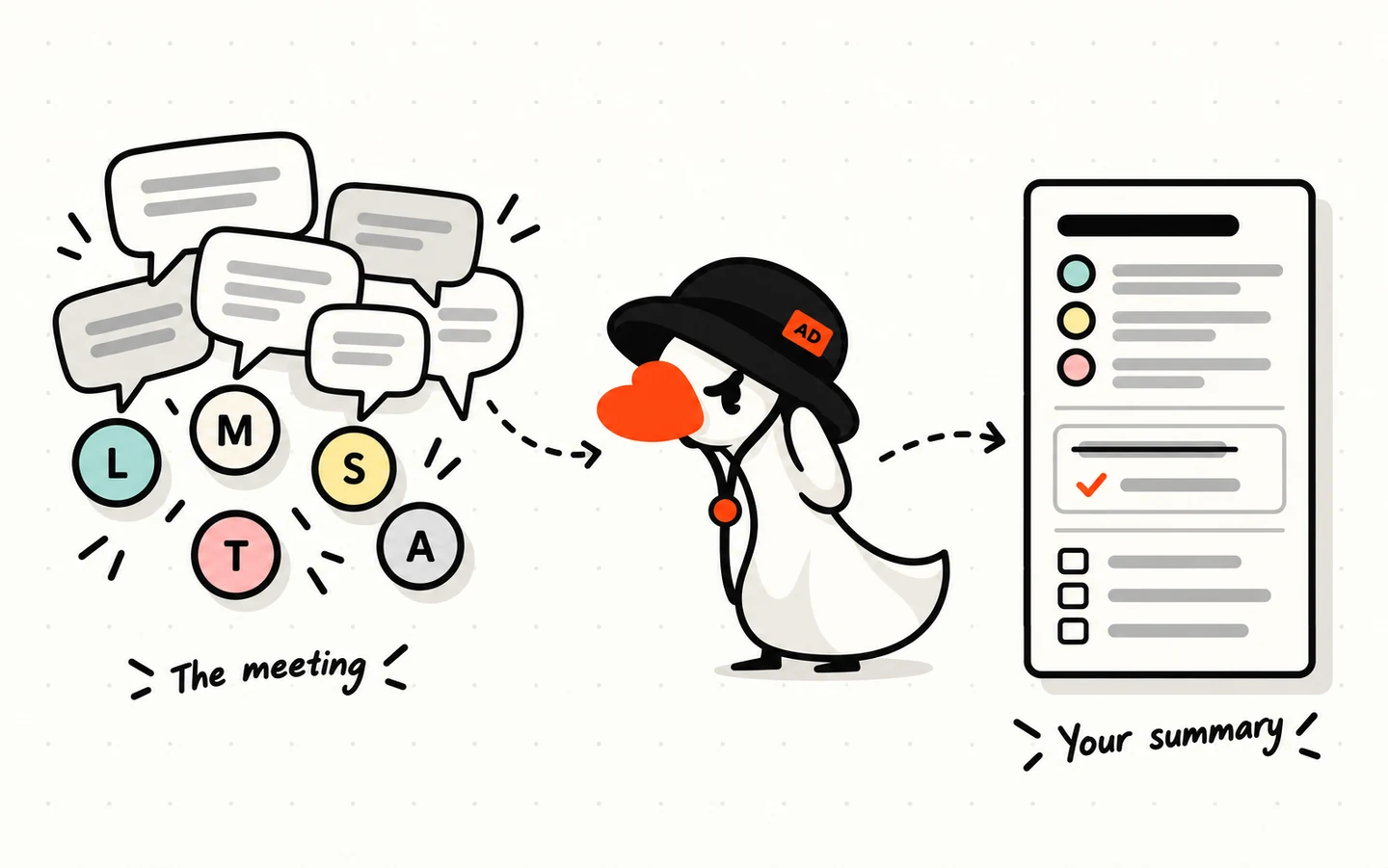
What Notetaker does
- Writes as people talk. Words appear on screen a moment after they’re spoken, in the language they’re spoken in.
- Tells speakers apart. Each person gets their own colour and label, and you can put a name on each one.
- Keeps a live summary. An agent reads along and rewrites the summary as the meeting moves on: topics, decisions, who owns what, deadlines, open questions.
- Follows decisions that change. If the meeting settles on plan A and later switches to plan B, the summary shows plan B as the outcome, and remembers that A was dropped and why.
- Lets you ask while it’s happening. A chat beside the transcript answers questions about the meeting so far, without interrupting anyone.
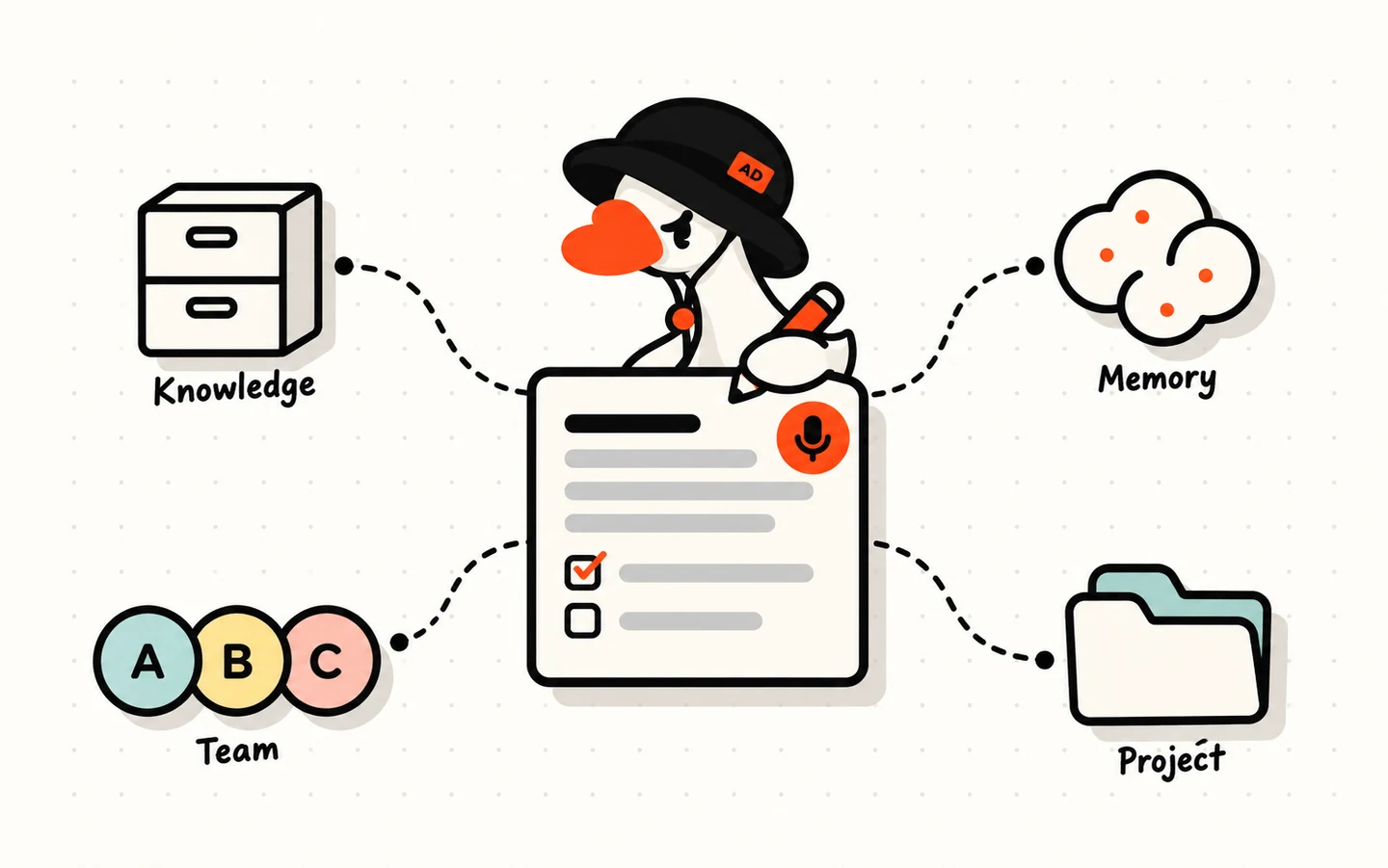
- Knows your context. Connect a note to your memory, your agents, your team or a project, and Notetaker understands names, past decisions and jargon that a stranger wouldn’t.
Start a note
- Log in at app.artidock.ai and click
Notetakerin the left sidebar, under Tools. - Click
New note. - Click the title at the top to rename it, such as “Mobile app launch plan” or “Biology lecture, week 6”.
- Press the mic button to start recording. The first time, your browser asks to use the microphone: allow it.
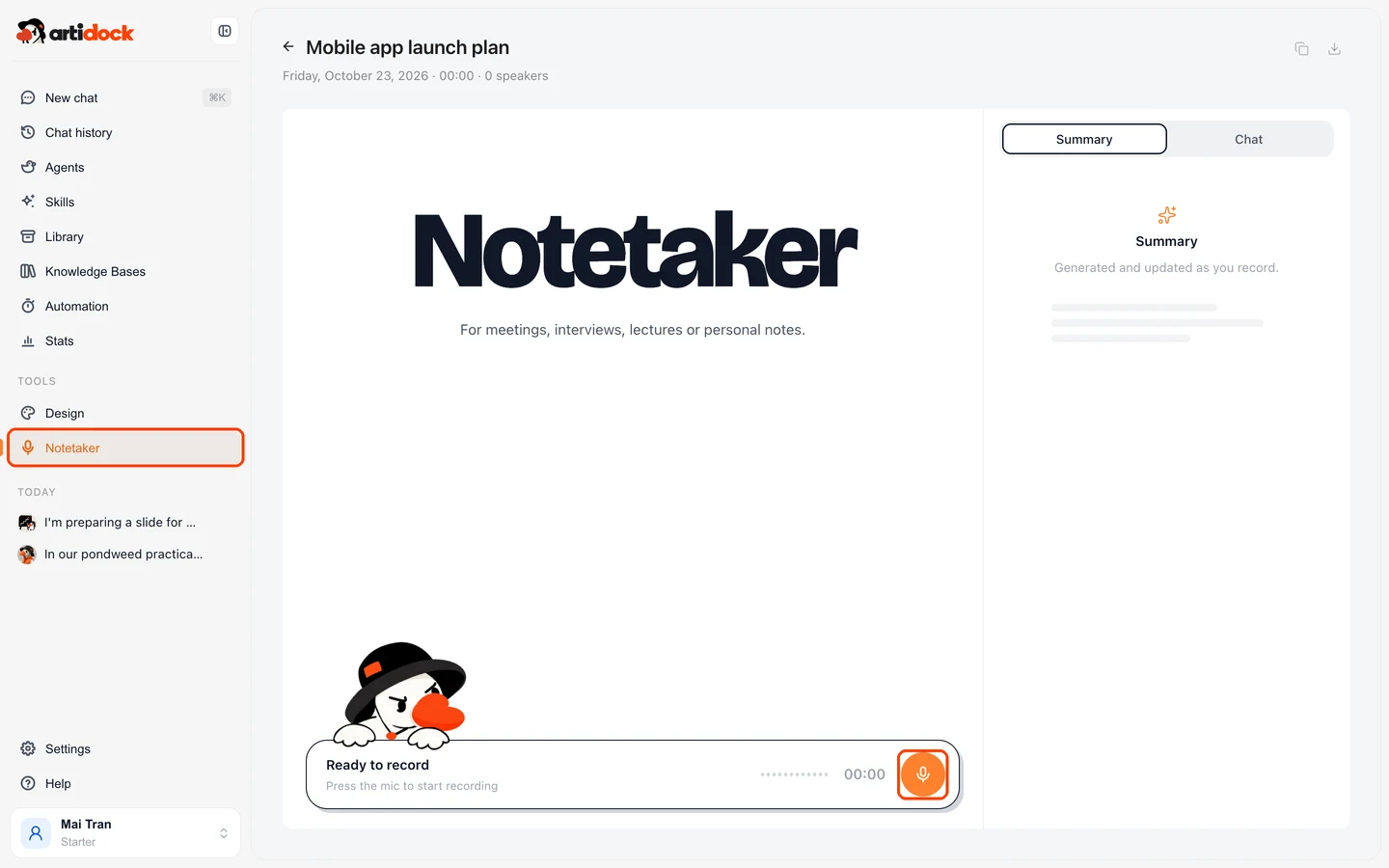
Press the mic again to Pause, and once more to carry on. The Space key does the same.
Tip: Put the device in the middle of the table, or use a conference microphone. The clearer the sound, the better Notetaker tells voices apart. For an online meeting, record on the computer you join the call from, with the call’s sound playing out loud.
Follow the meeting live
The screen has two halves. On the left is the transcript, growing as people speak. On the right is the summary.
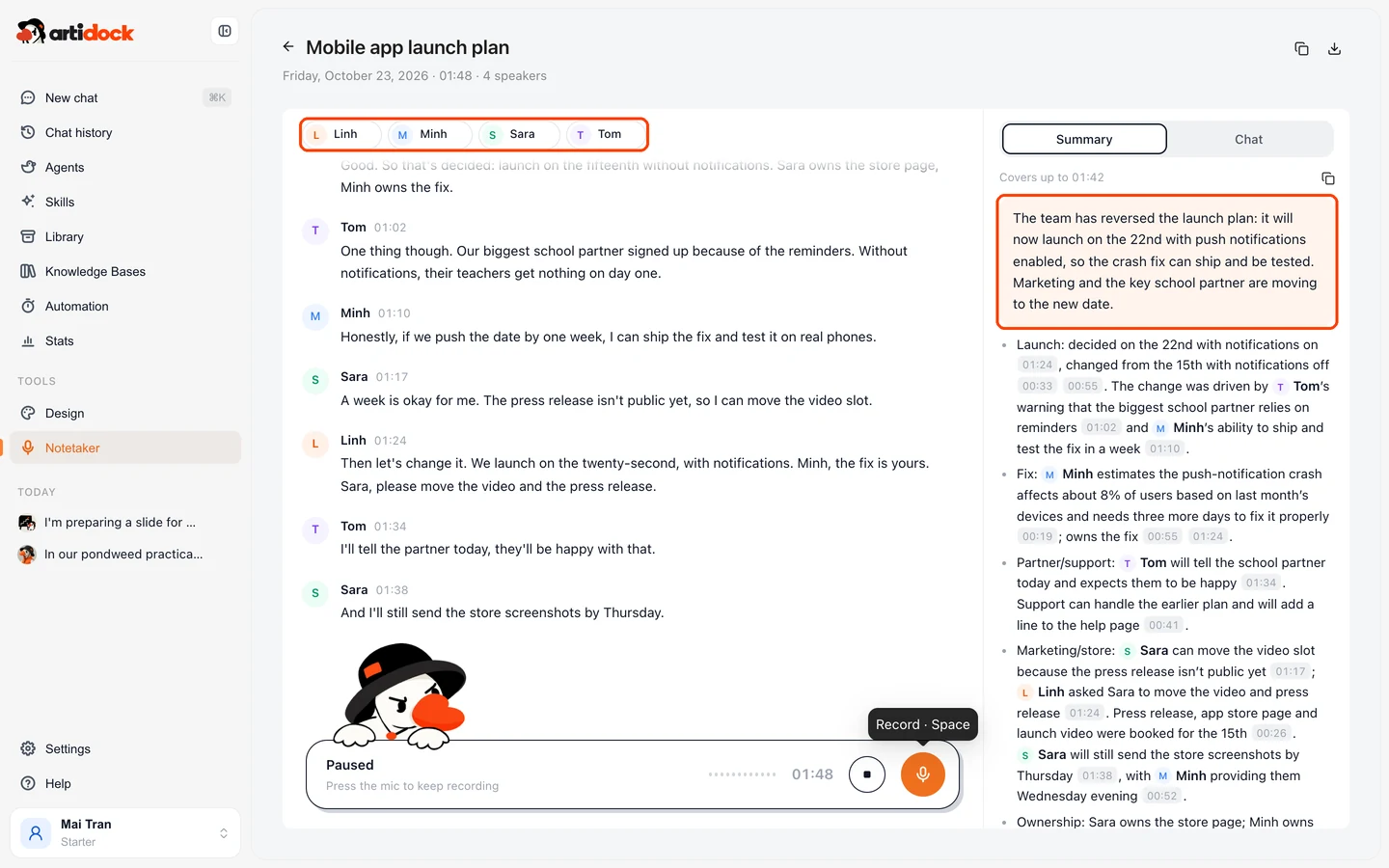
Who said what
Every turn in the transcript starts with the speaker’s label and the time. At first, people show up as Speaker 1, Speaker 2 and so on. Click a label, either above the transcript or on any turn, and type a name. The name is used everywhere at once: in the transcript, the summary and the chat.
A summary that keeps up
You don’t need to read the whole transcript. The summary on the right is written for the eyes: short sections on what was discussed, what was decided, who’s doing what and by when, and what is still open. It updates on its own every so often while you record. A small dot on Summary means it’s being updated, and the line at the top tells you how far it covers.
Each point in the summary carries the moment it came from. Click a time to jump to that spot in the transcript and read exactly what was said.
Mark what matters
When something important comes up, such as a requirement, a risk or a promise someone just made, tap the attention mark. Notetaker flags that moment, and the agent gives it extra care: it reads that part more closely, keeps it in the summary and brings it up again at the end.
Decisions that change
Meetings change their minds. That’s normal, and it’s where most notes go wrong.
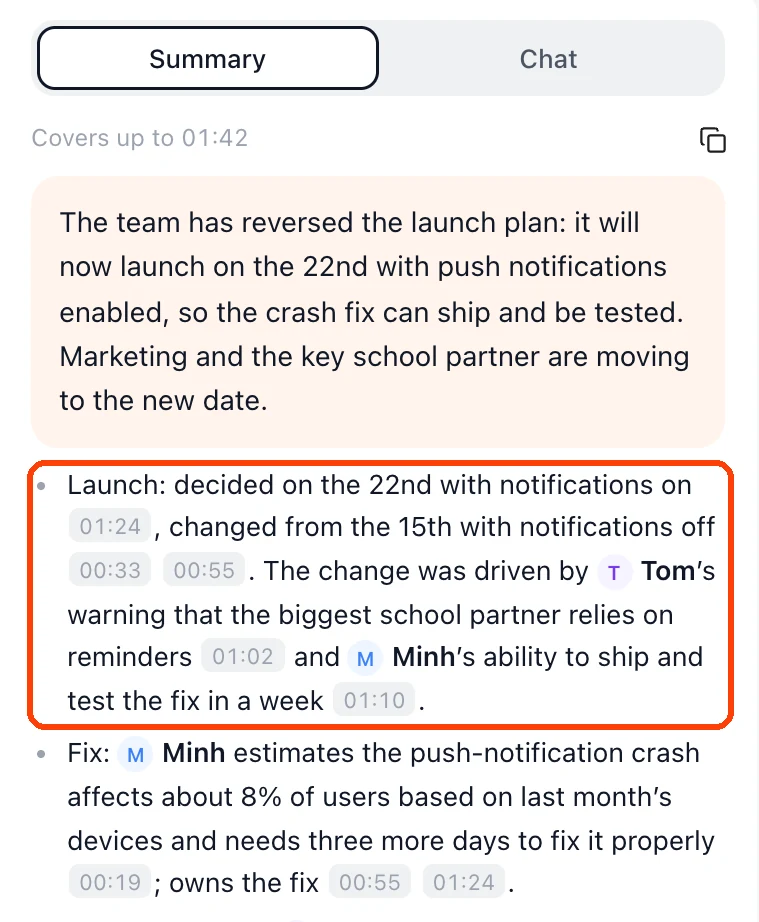
Notetaker keeps a live map of the meeting: the topics, the options on the table, who backed which one, and what was finally agreed. When a later turn overturns an earlier decision, the map is updated, not just added to.
Say your team agrees to launch on the 15th without notifications. Twenty minutes later, someone points out that your biggest customer needs them, and the team moves the launch to the 22nd, with notifications. The summary then shows:
- Decided: launch on the 22nd, with notifications.
- Changed: the earlier plan to launch on the 15th without them, and the reason it was dropped.
So the person who stepped out for ten minutes reads the right answer, not the old one.
Ask while the meeting goes on
Open Chat next to Summary and ask anything about what has been said so far. You don’t have to wait for the meeting to end, and nobody in the room has to stop talking.
- “What do we know about the crash fix so far, and what’s still open?”
- “Minh says the fix needs three more days. What should I ask him to check that’s realistic?”
- “Did anyone already mention the budget?”
- “What did Sara promise to send, and by when?”
Answers point back to the moments they come from, so you can check the transcript in one click. If you’re not sure where to start, try one of the ready-made questions: Sum it up in one sentence, What needs doing next? or What is still unclear?.
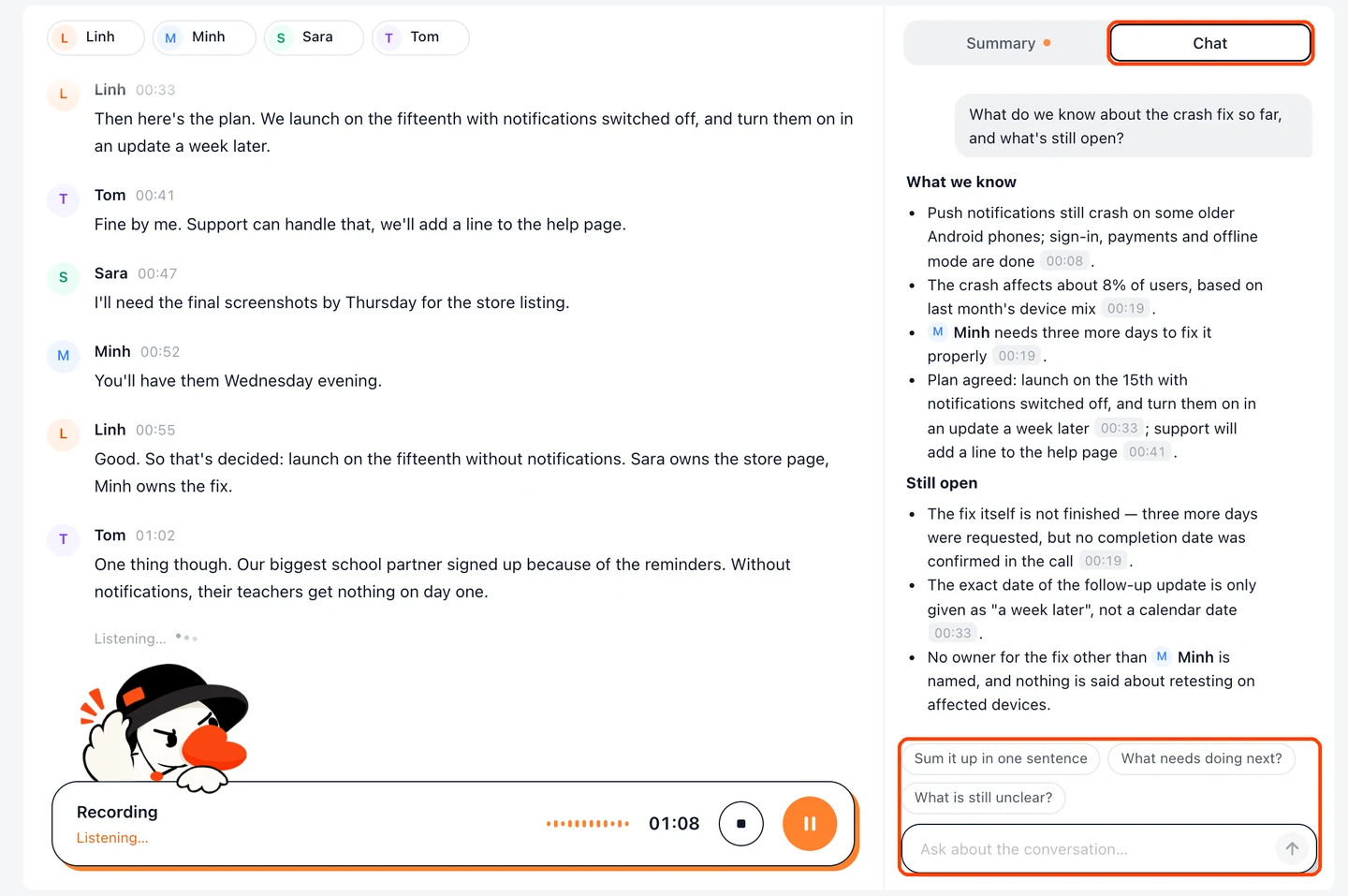
Tip: Use the chat to prepare your next question while someone is still talking. By the time they finish, you know exactly what to ask.
Notes that know your context
Most meeting recorders start every meeting knowing nothing. They don’t know that “Linh” is your project lead, that “the partner” means one particular school, or that the team already ruled out an idea last week. So they guess, and the notes come out vague.
Notetaker can be pointed at what you already have in ArtiDock:
- Your memory, so it knows who you are and how you like notes written.
- An agent’s memory, so your project agent’s knowledge of the work carries over.
- A team, so it knows the people in the room and how they work together.
- A project, so it knows the history: what was decided before, what’s still open, and the words your team uses.
With that context, names come out right, references make sense and the summary connects today’s meeting to the last one.
It works the other way, too. When the meeting ends, what was decided flows back into those memories, so the next chat with your agent already knows the outcome.
After the meeting
End the note
Click End when the meeting is over. Notetaker then goes over the whole recording once more to tell speakers apart more accurately, and the summary gets its final pass. After that, the note can no longer record.
Use the buttons at the top right to copy the transcript, or download it as a file.
Keep it in a knowledge base
Add the note, with its transcript and summary, to one of your knowledge bases. From then on, you can ask about it in any chat: “What did we decide about the launch date in last week’s meeting?” The answer comes back with the meeting listed under Sources.
A course’s lectures or a project’s meetings in one knowledge base make a record you can search, long after anyone remembers who said what.
Share it
Share the note with your team, or with the people who were in the room. They get the summary and the transcript, and can ask their own questions about it. People who missed the meeting can catch up in two minutes instead of watching a recording for an hour.
Ideas for using it
At work
- Weekly team meetings: owners and deadlines come out of the summary, ready to paste into your tracker.
- Client calls: keep the call focused on the client, and check the chat for anything you forgot to ask.
- Interviews: let the transcript hold the details while you pay attention to the person.
For study
- Lectures: follow the summary in class, then ask the chat about the part you didn’t get.
- Group projects: everyone sees who agreed to do what, so nothing falls through the cracks.
- Study groups: record the session and turn it into revision notes in a knowledge base.
Good to know
- Ask before you record. Let everyone in the room know you’re taking notes with Notetaker, and follow your school’s or company’s rules on recording.
- The summary is a helper, not the record. Notetaker can mishear a word or a name. For anything that matters, click the time and check the transcript.
- One microphone, one room. Notetaker hears what your device’s microphone hears. People far from it, or talking over each other, come out less clearly.
- Notes use credits. Recording, the live summary and chat answers use your credits, the same as chatting in ArtiDock.