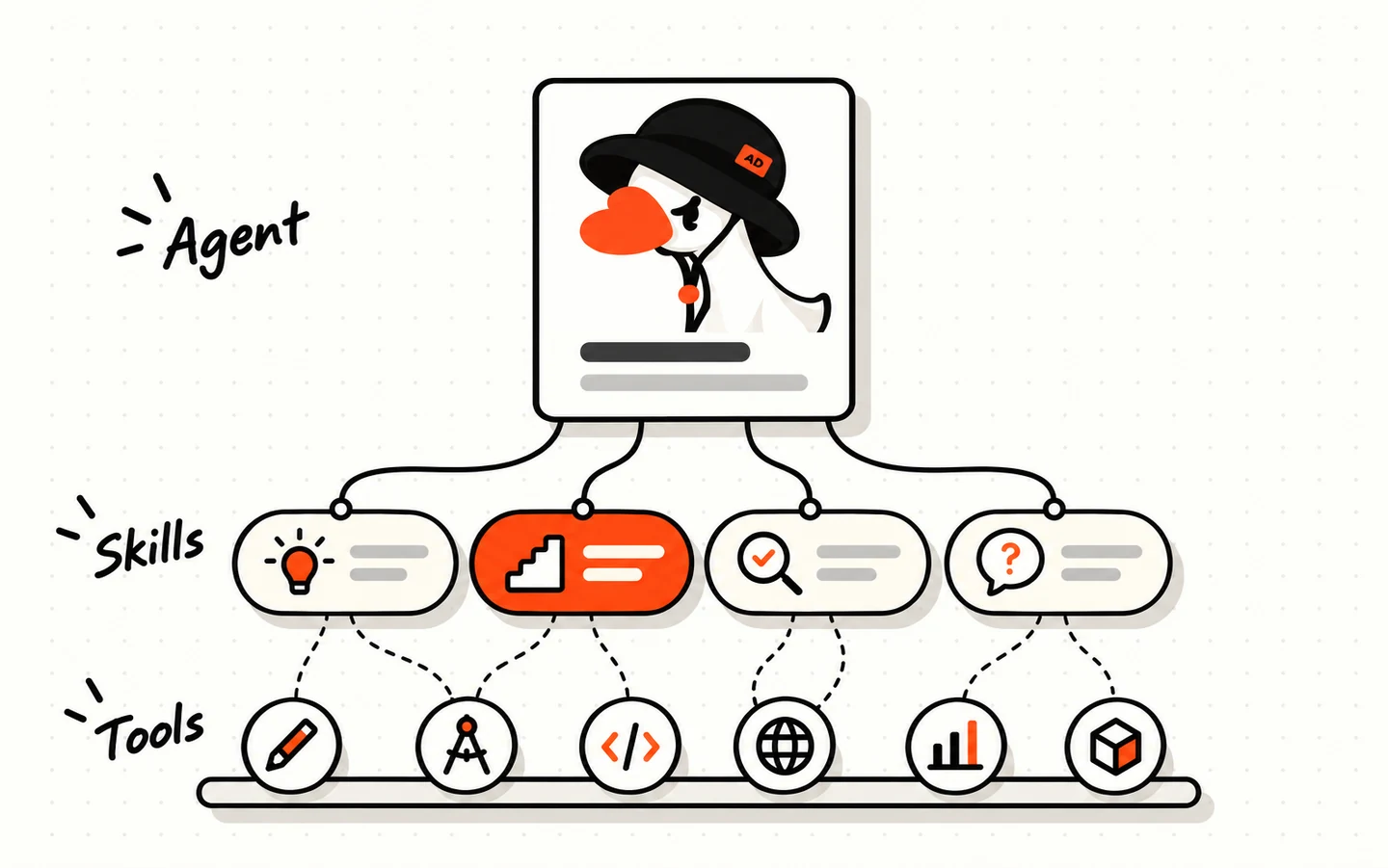
ArtiDock can answer almost anything on its own. But some jobs go better with a specialist: someone who already knows how the work is done, which tools to reach for and what a good result looks like. On ArtiDock, that specialist is an agent, and what it knows how to do are its skills.
This guide covers what agents and skills are and how they work together. It walks through two real examples, then shows you how to find, install, tune, build and share your own.
Agents and skills in one minute
Picture hiring a private tutor for your kid. You aren’t hiring “someone smart”. You’re hiring a person trained for one job, who brings their own methods and their own kit.
- An agent is the specialist. It’s an AI trained to do one kind of work well, such as teaching, checking websites, writing reports or planning trips. It has its own personality, its own way of working and its own memory of you.
- Skills are the know-how. Each skill is one thing the agent knows how to do properly: explaining a problem step by step, measuring how fast a page loads, checking a source before quoting it. An agent picks the right skill for the moment by itself.
- Tools are the kit. Skills put tools to work: the board, a drawing pen, a code runner, a web search, an outside service. A skill is the method. The tool is what the method uses.
One agent can carry many skills, and one skill can be shared by many agents. Mix and match until the agent works the way you do.
Two agents, up close
The idea is easiest to see in examples. Here are two very different agents and what’s inside each.
A tutor
A tutor agent is built to help someone learn, not just to hand over answers.
How it teaches (its skills):
- Teaching step by step. It breaks a problem into small moves and explains each one before going on.
- Exploring with you. It asks what you already know, finds where you got stuck and starts from there.
- Guiding instead of telling. Sometimes it holds back the answer on purpose and gives a hint or a question instead, so you get there yourself and remember it.
- Thinking critically. It finds sources and checks them, and it verifies an answer before calling it right.
What it works with (its tools):
- Creating a board and drawing on it, so ideas are laid out where you can see them.
- Building geometry figures, including 3D solids you can turn around.
- Making interactive simulations you can play with, such as a pendulum, a circuit or a graph that moves as you change a value.
- Searching for documents and reading material.
- Running code to calculate, so numbers come out exact instead of guessed.
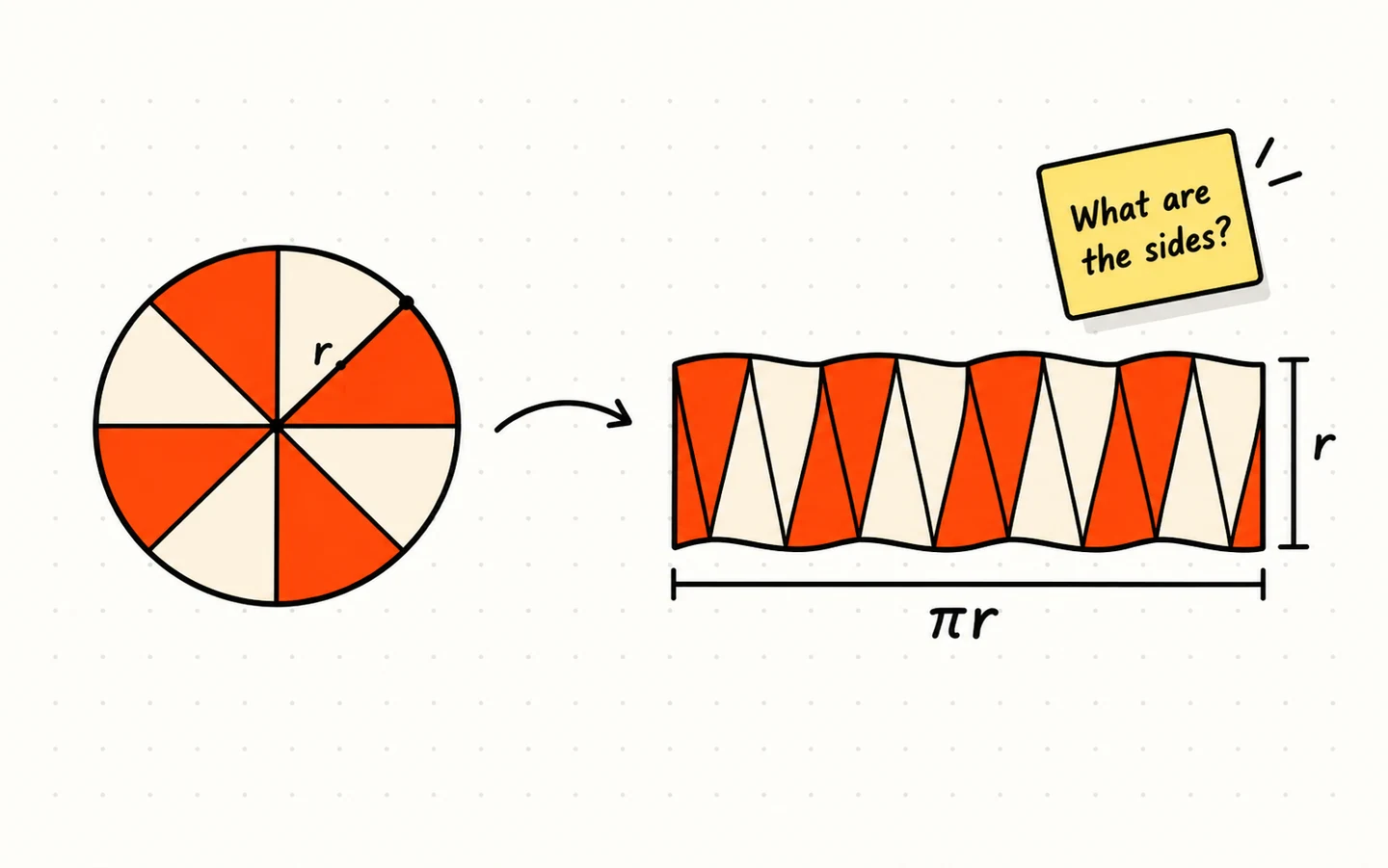
Ask it why the area of a circle is πr² and you won’t get a one-line formula. You’ll get a board: the circle cut into slices, the slices rearranged into something close to a rectangle, and a question back to you about what the rectangle’s sides are.
A website explorer
A website explorer agent is built to tell you how healthy a website is and what to fix first.
How it works (its skills):
- Reading a website the way both a visitor and a search engine would.
- Checking load time and performance, including what slows the page down and on which devices.
- Assessing the site’s health overall: speed, search visibility, links, and how the site shows up in search and on social media.
What it works with (its tools):
- PageSpeed Insights, for speed and performance scores.
- The Ahrefs and Semrush APIs, for backlinks, keywords and search traffic.
- Search engines, to see how the site really appears in results.
- Social post search, to see what people are saying about it and sharing.
Give it a link and you get a report back: what’s slow, what’s missing, what competitors do better, and a list of fixes ordered by how much each one matters.
Same ArtiDock, different specialist. The tutor and the explorer run on the same app. What makes them different is the skills and tools each one carries.
Where to find them
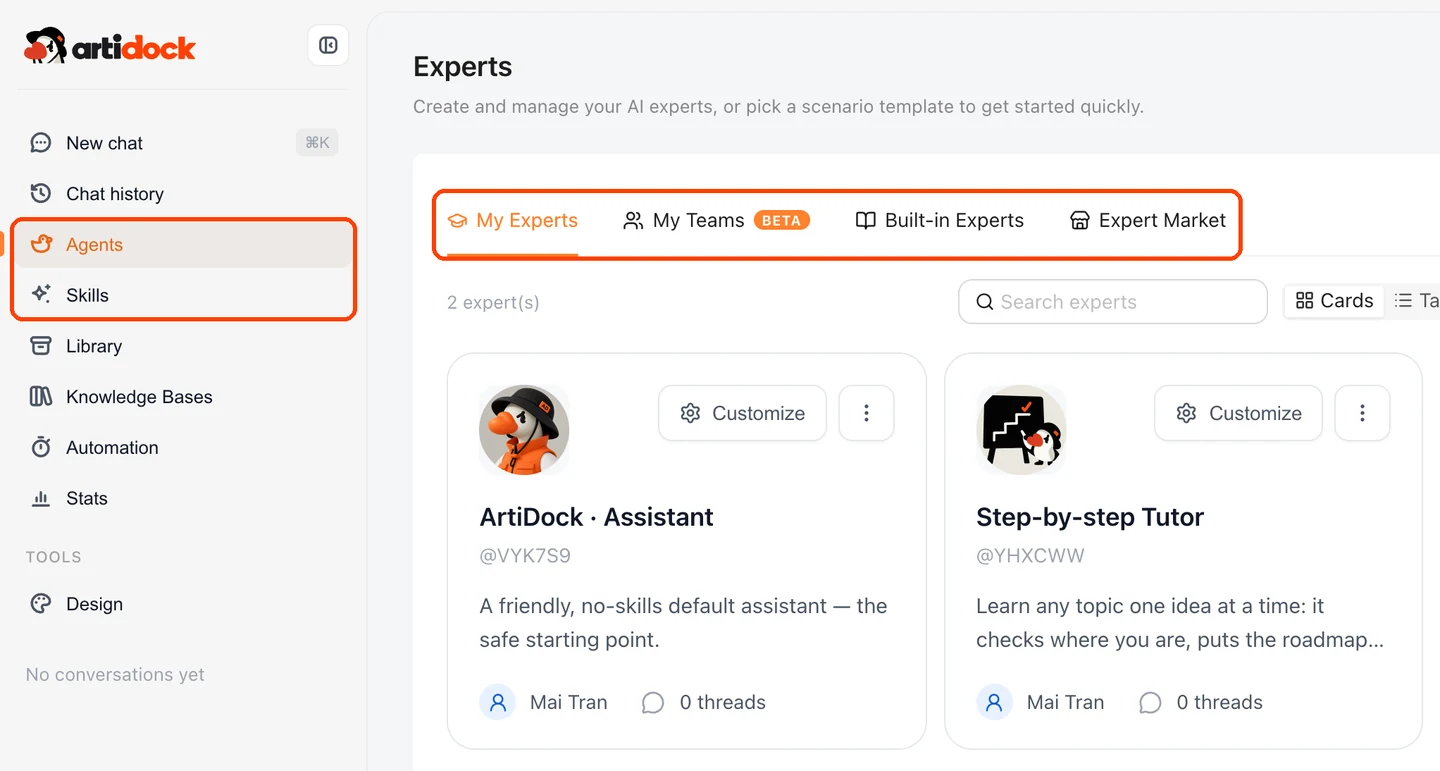
Both live in the left sidebar once you’re logged in.
- Log in at app.artidock.ai.
- Click
Agentsin the left sidebar to see every agent, or go straight to app.artidock.ai/experts. - Click
Skillsin the left sidebar to see skills, or go to app.artidock.ai/personalization/skills.
The Agents page has four tabs:
My Experts: the agents that are yours, whether you installed them or built them.My Teams: groups of agents that answer a question together.Built-in Experts: ready-made agents that ship with ArtiDock, plus templates other users have published.Expert Market: the Agent Hub, more on that below.
The Skills page shows the skills of one agent at a time. Choose the agent in the switcher at the top. Installed Skills lists what it already has, and SkillHub is where you find more.
The Agent Hub and the Skill Hub
You don’t have to build anything from scratch. ArtiDock keeps two hubs: Expert Market for agents and SkillHub for skills.
- Free. Everything in the hubs costs nothing to install.
- Picked from real use. We collect agents and skills that have proved themselves in actual work, not demos.
- Always being updated. New ones arrive and existing ones improve over time.
- Built by the community too. Other ArtiDock users share their agents and skills here, so the hubs grow with everyone who uses them.
Each agent in Expert Market comes with a detail view. Before you install it, you can see its Included Skills, the Quick-start cards it opens with and examples of tasks it can run on a schedule. SkillHub can be sorted by For You, Trending, Top Downloads and Newest.
Install an agent
- Click
Agentsin the sidebar, then open theExpert Markettab. - Search for the job you have in mind, such as “tutor”, “SEO” or “travel”, or filter by a field like Education or Marketing.
- Open an agent to see its skills and quick-start cards.
- Click
Create from Market. The agent shows up underMy Experts, ready to use. - Click its card to start chatting with it.
You can install the same agent more than once with Create another. That’s handy when you want two versions of it, such as one for maths and one for literature.
Tip:
Built-in Expertsworks the same way. Find a card you like and clickCreateto make your own copy.
Add a skill to an agent
- Click
Skillsin the sidebar and choose the agent in the switcher at the top. - Open the
SkillHubtab and search by name, description or category. - Click
Installon the skill you want. If ArtiDock asks, choose which agent gets it. - The skill appears under
Installed Skills, switched on. The agent uses it whenever a request calls for it, so you don’t have to remind it.
Each skill has an on/off switch. If a skill keeps stepping in when you don’t want it, switch it off rather than deleting it.
Use them in a chat
There are two ways to bring a specialist into your work:
- Talk to the agent directly. Click its card on the Agents page and you’re in a chat with it, with its personality, skills and memory.
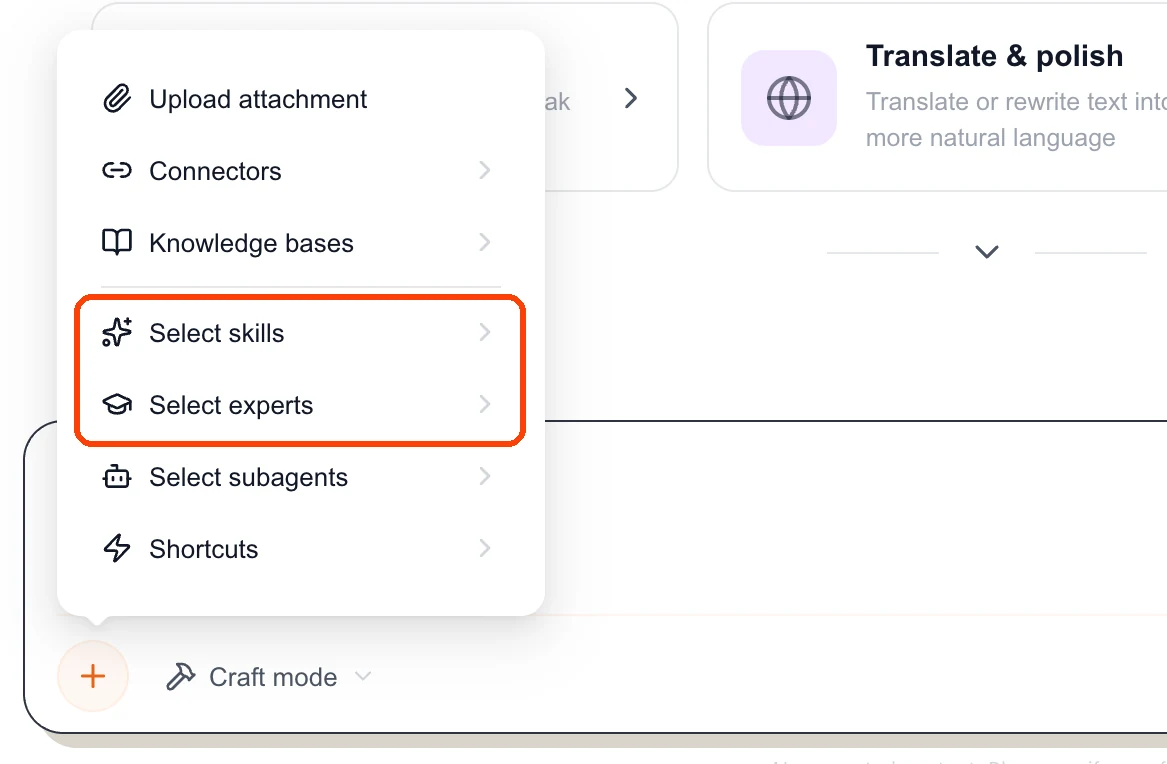
- Call them in from any chat. In the message box, click
+and chooseSelect expertsto bring in an agent, orSelect skillsto point the reply at a particular skill.
Make it yours
Anything you install is your own private copy. Change as much of it as you like; the original in the hub doesn’t change, and nobody else’s copy does either.
On the agent’s card in My Experts, click Customize to change its name, look and welcome message. The card’s menu opens everything else:
Skills: add, switch off or edit the skills it carries.Tools: choose which tools it can use and how.MBTI: give it a personality type, which changes how it talks and thinks.Memory: see and tidy up what it remembers about you.
Inside an agent you can also rewrite the files that shape its behaviour: its Soul (core principles and style), its Identity (who it is), its User Profile (what it knows about you) and its System Prompt (how it should work).
Skills can be tuned in the same way. On the Skills page, open a skill and click Edit Skill to change when it’s used and how it does the job, then Save.
Tip: Change one thing at a time and try it in a chat. A small edit to a skill’s description, saying when it should be used, often matters more than rewriting the whole skill.
Build your own
When nothing in the hubs fits, make it.
A new agent
- On the Agents page, click
New expert. - Give it a name and a short description of the job it does.
- Add skills from
SkillHub, choose its tools and set its personality. - Start a chat and try it. Go back to
Customizewhenever it needs adjusting.
A new skill
- On the Skills page, choose the agent and click
Create Skill. - Fill in the name and the description. The description tells the agent when to use the skill, so write it as a situation: “Use when the user shares a website link and asks how it’s doing”.
- In the skill implementation, write out how to do the job, in plain Markdown: the steps, what to check, and what a good result looks like.
- Click
Save. The skill is on straight away.
Already have skills written somewhere else? Use Import Skill to bring them in from a link or a ZIP file.
Share with your team and the community
A good agent is worth more when other people can use it.
- With your team. Open
Customizeon the agent and switch onShare with other users. People you work with see it among their agents, marked as shared and showing who it came from, and can use it straight away. - With the community. In the card’s menu, choose
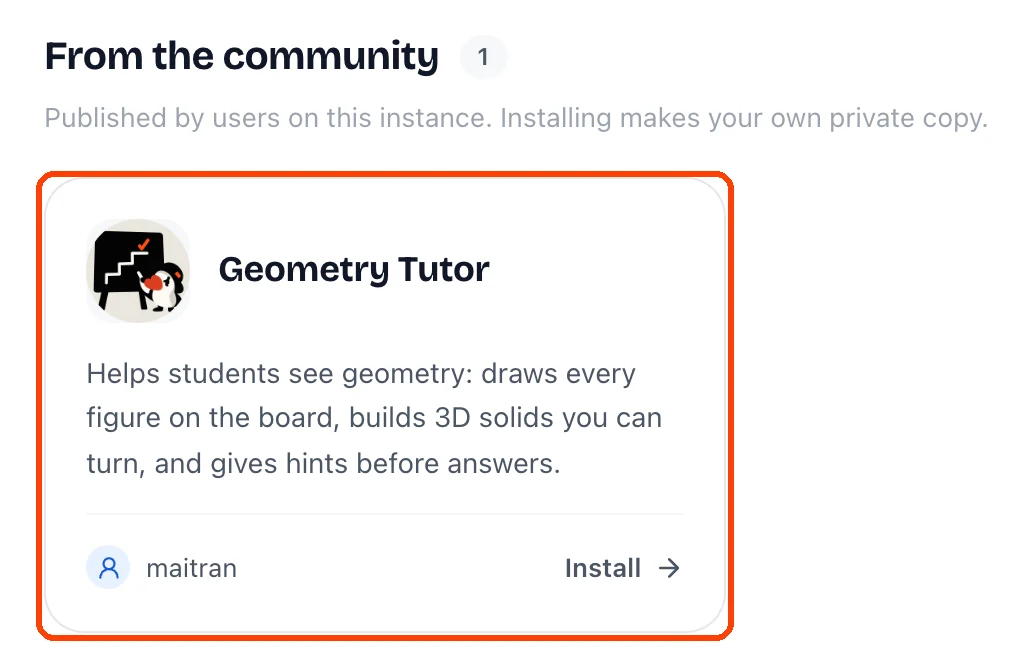
Publish template, give the template a name, description and welcome line, and clickPublish. Other users find it underBuilt-in Experts→From the communityand install their own private copy.
Skills can be shared with your team and the community in the same way, so a method that works for you can work for others.
What gets shared is the agent’s setup: its files, skills and sub-agents. Your chats, memory and uploaded files always stay private. Improved your agent? Choose Update published template. Changed your mind? Unpublish takes it down, and people who already installed it keep their copy.
Good to know
- Skills switch on by themselves. You don’t need to name a skill in your message. The agent reads what you ask and picks the right one.
- More isn’t always better. An agent with a few well-chosen skills is often sharper than one carrying dozens.
- Installs are copies. Your changes are yours alone, and someone else’s changes never overwrite your copy.
- Agents remember. Each agent keeps its own memory of you, so your tutor and your website explorer don’t mix up what they know.