ArtiDock knows a lot, but it doesn’t know your class notes, your company handbook or last term’s lab results. A knowledge base fixes that. You put your documents in once, and from then on ArtiDock looks things up in them before it answers, and shows you which document each part of the answer came from.
This guide covers how to make a knowledge base, fill it, use it in a chat and give it to an agent. It also covers the FAQ kind, for questions that need the same answer every time, and how to share a base with other people.
What a knowledge base is
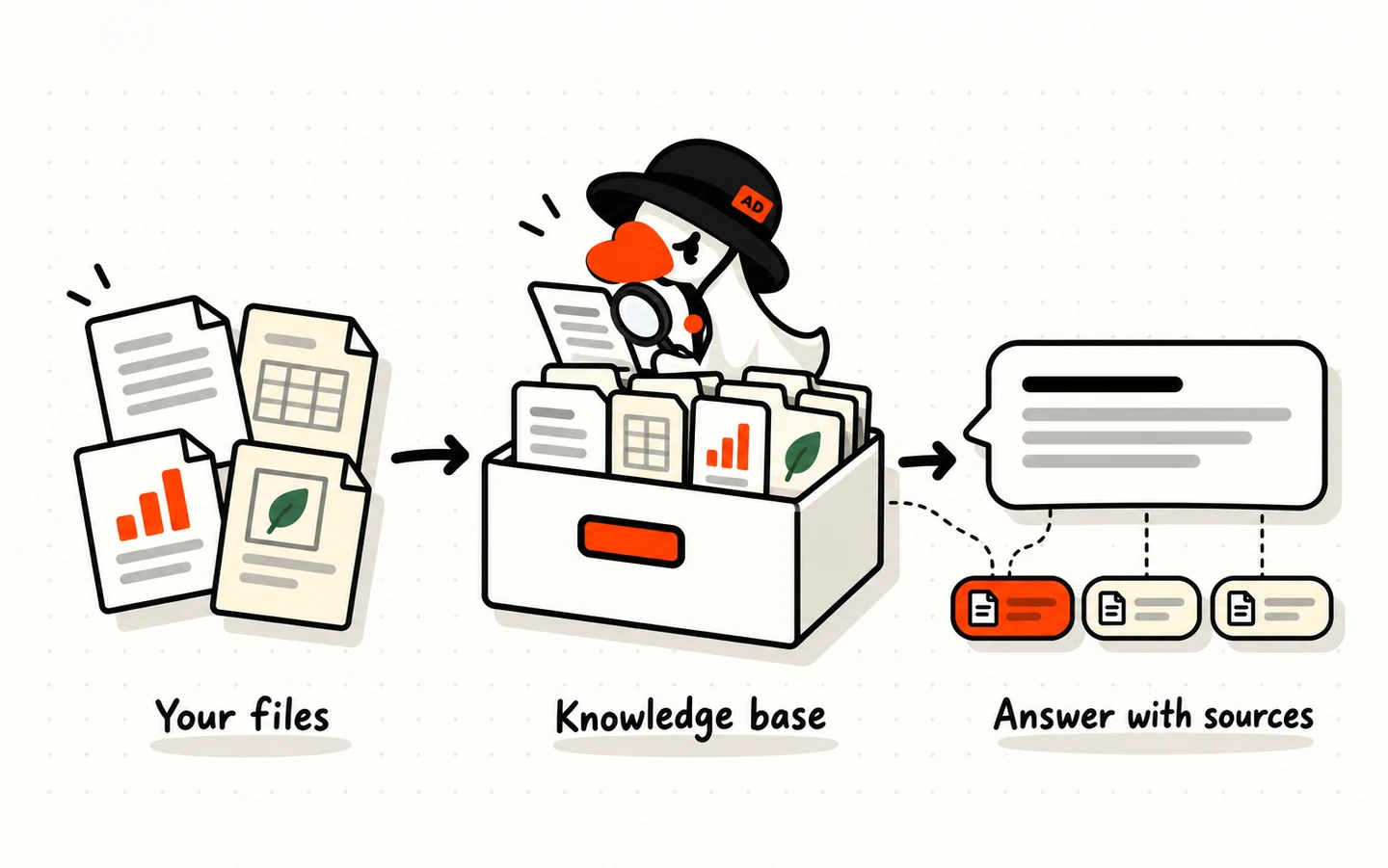
Think of it as a filing cabinet that ArtiDock can read.
- You fill it once. Upload files, make folders, write notes. ArtiDock reads each document and indexes it, so it can find the right passage later.
- It’s searched, not pasted. When you ask something, ArtiDock pulls out only the passages that matter. A base can hold far more than you could ever paste into one message.
- Answers show their sources. Every answer built from your documents lists them under
Sources, so you can check the original. - It stays. The same base works in every new chat, and with any agent you give it to.
Attach or keep? Attaching a file to one message is fine for a quick question about one document. If you’ll come back to the same documents again and again, put them in a knowledge base.
Two kinds: Documents and FAQ
When you create a base, you choose its type. The type can’t be changed later, so pick the one that fits:
Documents: for files and folders. ArtiDock searches their content and writes an answer from what it finds. Use it for notes, handouts, manuals, reports and spreadsheets.FAQ: for questions with set answers. You write each question and its answer yourself, and ArtiDock gives back your answer when someone asks the same thing in other words. Use it for things like rules, deadlines and “how do I…” questions that need the same answer every time.
Most people start with a Documents base. The FAQ kind has its own section below.
Create a knowledge base
- Log in at app.artidock.ai and click
Knowledge Basesin the left sidebar. - Click
Create knowledge base. - Under
Basic information, choose the type,DocumentsorFAQ. Give the base a name and a short description of what’s inside and when to use it. - Under
Icon, pick a picture for it, such as Science, Law or Languages, so you can spot it in a list. - Under
Usage & sharing, set how the base is used (more on this below). - Click
Create knowledge base.
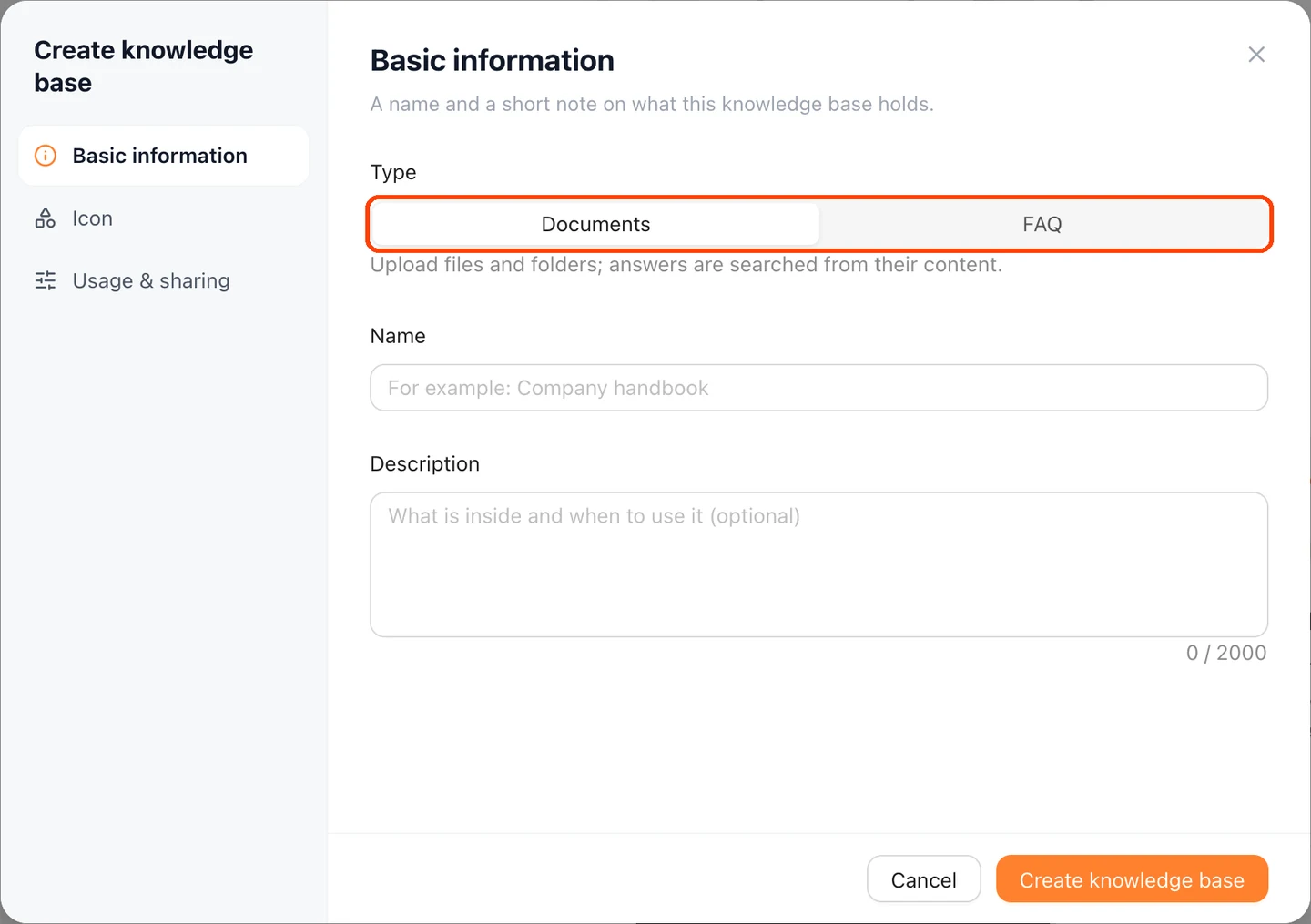
Tip: Write the description for ArtiDock as much as for yourself. “Year 10 biology notes, handouts and lab results” helps it tell when this base is the right place to look.
Usage & sharing
Three settings decide how the base gets used:
Document limit: the most files the base can hold. The default is 100, and 0 means no limit.Default enabled: the base is switched on in every new chat you start, so you don’t have to pick it each time. You can still switch it off for one chat. It shows asDefault onon the base’s card.Shared: everyone signed in to ArtiDock can find the base, read it and use it in their chats. Only you can change what’s in it.
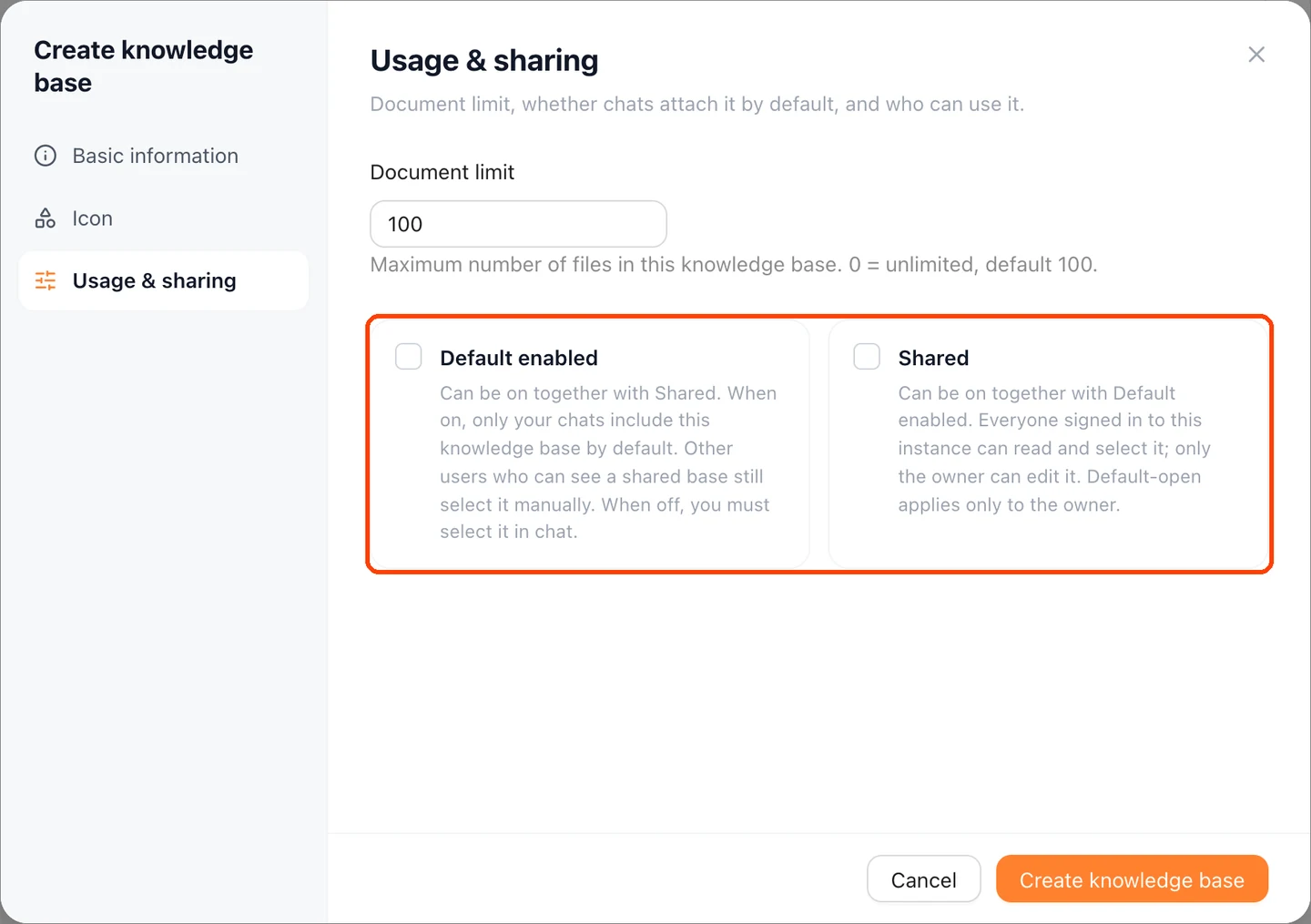
You can change all three later: open the base’s ⋯ menu and choose Edit knowledge base.
Add your documents
Open the base by clicking its card. You can add documents in three ways:
Upload documents: choose one or more files from your computer, or drag them onto the page. Files go into the folder you have open.New folder: make folders to keep things in order, such as one per unit or per project.New file: write a note straight into the base. You can come back and edit it any time.
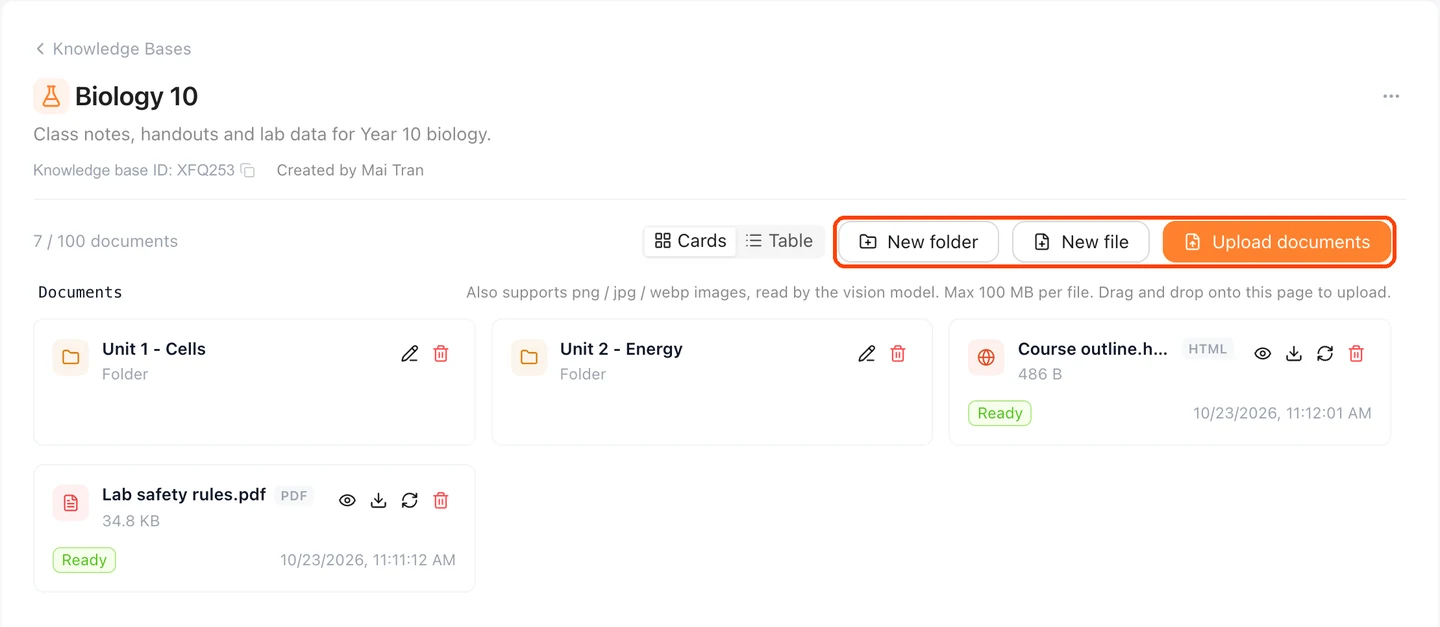
What you can upload:
- Text and web pages: Markdown, plain text, HTML, JSON and YAML.
- Spreadsheets: CSV, TSV and Excel files.
- Office files and PDFs: Word documents, PowerPoint slides and PDFs.
- Pictures: PNG, JPG and WebP. ArtiDock reads what’s in the picture, including text in a photo or a scan.
The page shows the size limit for a single file.
Status, preview and updates
After you add a document, ArtiDock reads it. Each document shows its status:
Pending: waiting its turn.Indexing: being read.Ready: searchable in chats.Failed: something went wrong. Hover over it to see why, then clickRebuild indexto try again, or upload a cleaner copy.
Each document also has buttons to Preview it in place, with an Outline and Find in document for long ones, to Download the original, and to Edit notes you wrote with New file.
Tip: Clean files give better answers. A PDF exported from a document reads better than a crooked phone photo of a printout, and a spreadsheet with clear column headings reads better than one full of merged cells.
Use it in a chat
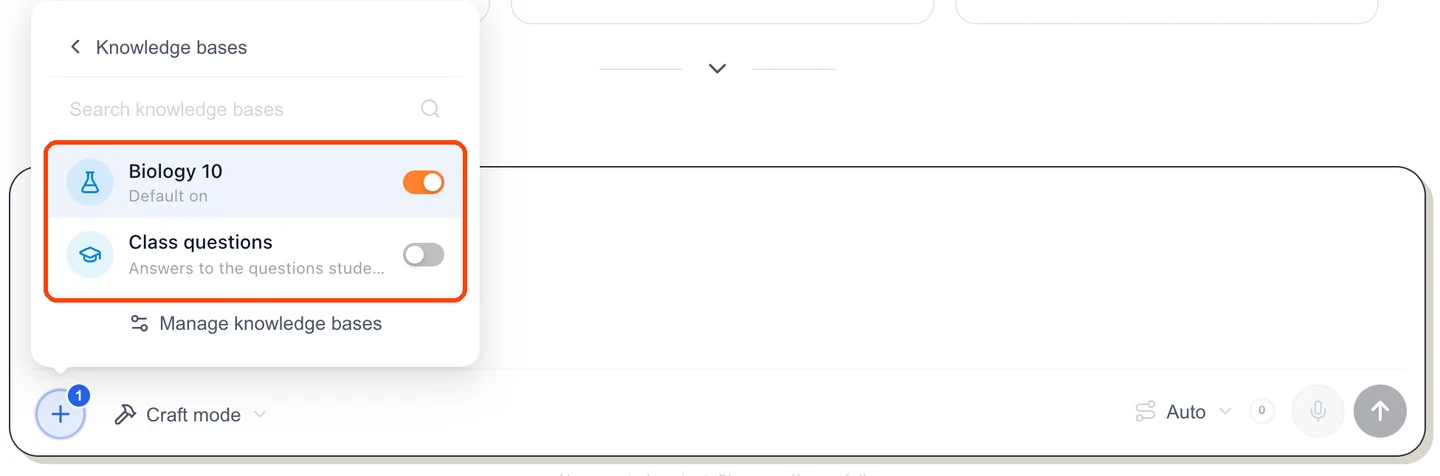
A base switched to Default enabled is already on in every new chat; it sits as a chip above the message box. To choose bases yourself:
- In the message box, click
+and chooseKnowledge bases. - Switch on the bases you want for this chat.
Search knowledge baseshelps when you have many. - Ask your question as usual.
ArtiDock searches the bases that are on, writes the answer from what it finds and lists the documents it used under Sources. Click a source to open the document beside the chat and check it yourself.
The answer doesn’t have to be plain text. ArtiDock can work with what it finds: turn a results table into a chart on a board, build a quiz from your notes, or compare two documents side by side.
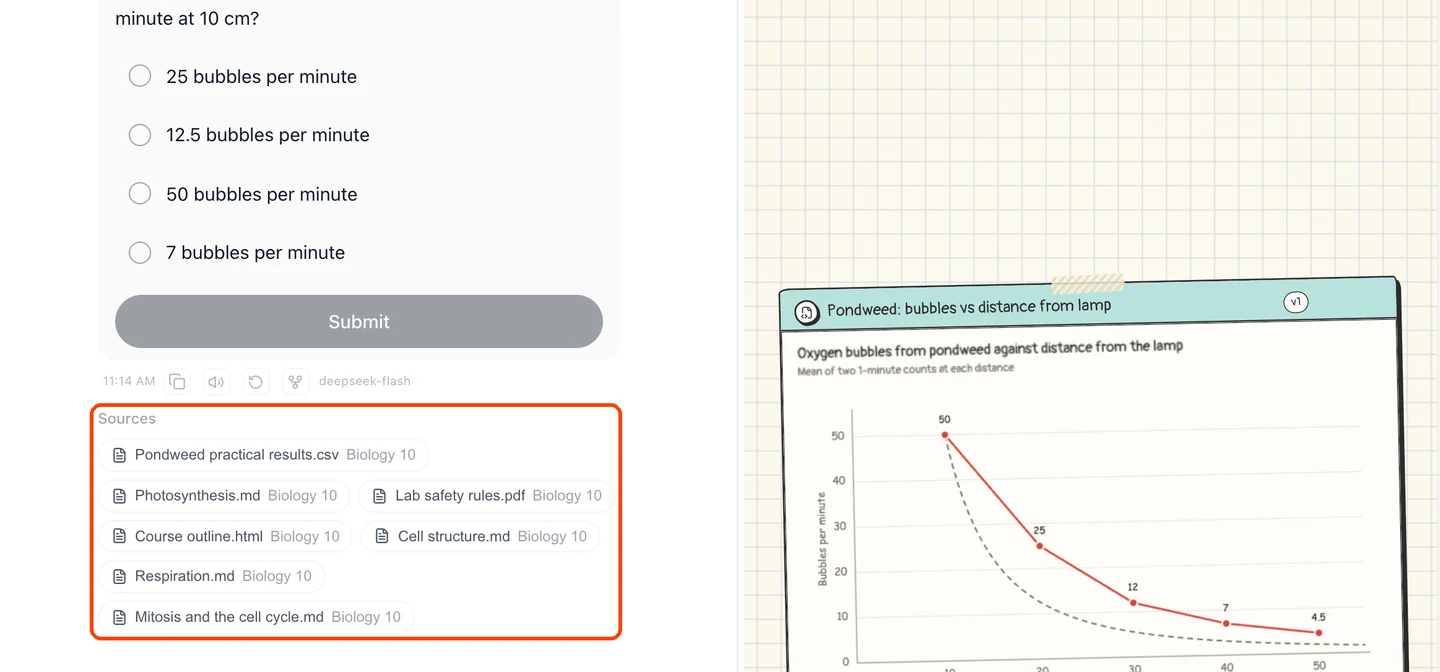
Ask about your documents, not around them. “In our pondweed practical, why did we count fewer bubbles further from the lamp?” tells ArtiDock to look in your notes and results. “What is photosynthesis?” can be answered without them.
Give an agent its own knowledge
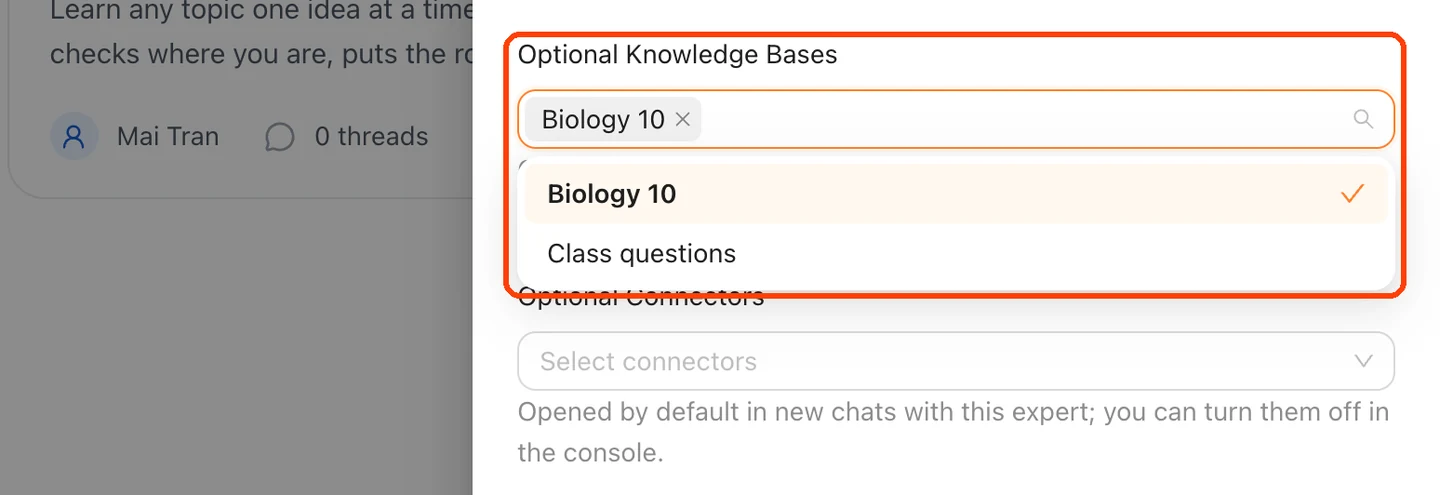
If you use an agent for one subject, such as a tutor for biology, it can open the right bases by itself.
- Click
Agentsin the sidebar. - On the agent’s card, click
Customize. - Under
Optional Knowledge Bases, choose one or more bases. - Click
Save.
Every new chat with that agent starts with those bases switched on. You can still switch them off for a single chat from the + menu.
To learn more about agents, read Agents and skills.
FAQ bases for set answers
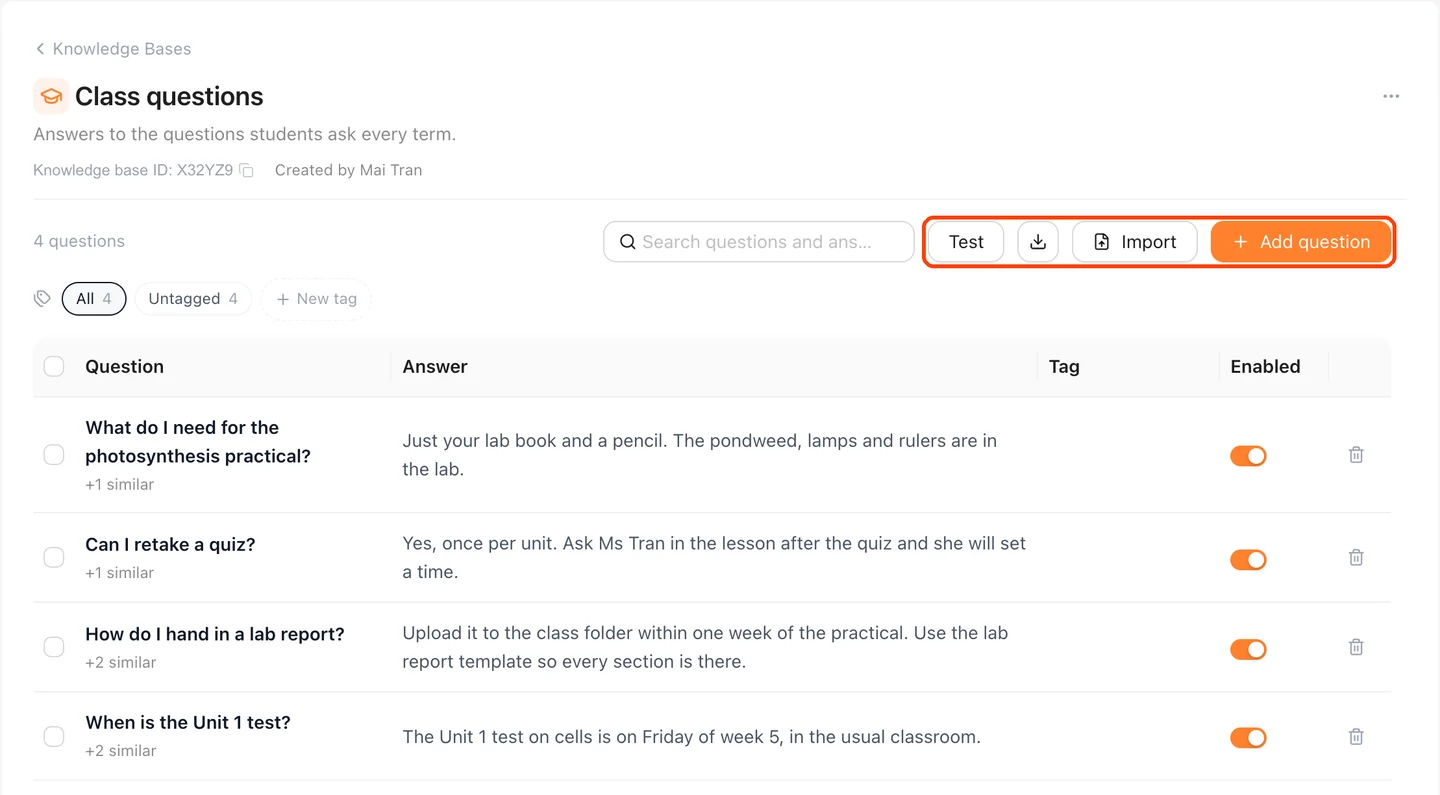
An FAQ base doesn’t hold files. It holds questions, each with the answer you wrote. When someone asks something close to one of the questions, ArtiDock gives back your answer instead of writing its own. That’s what you want for things that must be said exactly right, such as a deadline, a rule or a price.
Add a question
- Open the FAQ base and click
Add question. - Type the question the way people usually ask it.
- Under
Similar questions, add other ways people ask the same thing, pressing Enter after each one: “When is the cells test?”, “What day is the biology test?”. - Under
Not this question, add questions that look alike but need a different answer. For “How do I hand in a lab report?”, that might be “How do I write a lab report?”. - Write the answer. You can add more than one, then choose what happens
When there are several answers:Return allorPick one at random. - Give it a
Tagif you want to group questions, and leaveEnabledon. A question that’s switched off is kept but never used.
Many questions at once
Importbrings in questions from a CSV, Excel or JSON file. ClickDownload templateto get a file with the right columns. ChooseAdd to existingto keep what’s there, orReplace allto start over.- The download button next to
Importexports every question, which is handy as a backup or for editing in a spreadsheet.
Check it before you rely on it
Click Test and type a question the way someone would really ask it. You’ll see which questions it matches and which wording it matched through. If the wrong one comes up, add a similar question to the right entry, or a Not this question to the wrong one.
The Wiki tab
A Documents base can also have a wiki. When the wiki is on, ArtiDock reads every document in the base and writes linked pages about what’s inside: a Summary of each document, pages for the people, places and ideas that come up, and pages that bring together or compare several documents.
- Each page lists its
Sourcesand the pages that link to it underLinked from. - Pages update as documents are added or changed.
- You can edit a page yourself.
Historykeeps every version, andRestore this versiontakes a page back.
The wiki is turned on by an admin. If a base’s Wiki tab says it’s off, that’s why.
Share a knowledge base
Switching on Shared makes a base available to everyone signed in to ArtiDock:
- They can find it, read its documents and switch it on in their own chats.
- Only you can add, change or delete what’s inside.
Default enabledonly applies to you. Other people switch the base on themselves when they need it.
That makes sharing a good fit for things meant for many people, such as a course pack or a product manual. Don’t share a base that holds anything private, such as personal details, grades or internal documents. To stop sharing, switch Shared off again under Edit knowledge base in the base’s ⋯ menu.
Good to know
- Your plan sets the limits. How many knowledge bases you can have and how much document storage you get depend on your plan. The pricing page lists them under each plan’s details.
- Reading documents uses credits. Adding a document uses a little of your credits, the same way chatting does.
- Answers are only as good as the documents. If something isn’t in your base, ArtiDock answers from what it already knows. Check
Sourcesto see which is which. - Keep bases focused. One base per subject or project finds better passages than one huge base with everything in it.
- Update, don’t duplicate. When a document changes, replace the old copy instead of uploading a second version next to it, so answers don’t mix old and new.