A good figure saves ten minutes of explaining. With ArtiDock you describe the figure you need in plain words, and it draws it for you: a pyramid cut by a plane that you can turn around, a graph with a slider, a pendulum that really swings. Then you take it wherever you teach: into your slides, onto the projector, or onto your students’ phones.
This guide shows how to ask for a visual, fix it until it’s right, put it in a slide with an embed code, and share a whole board with a link.
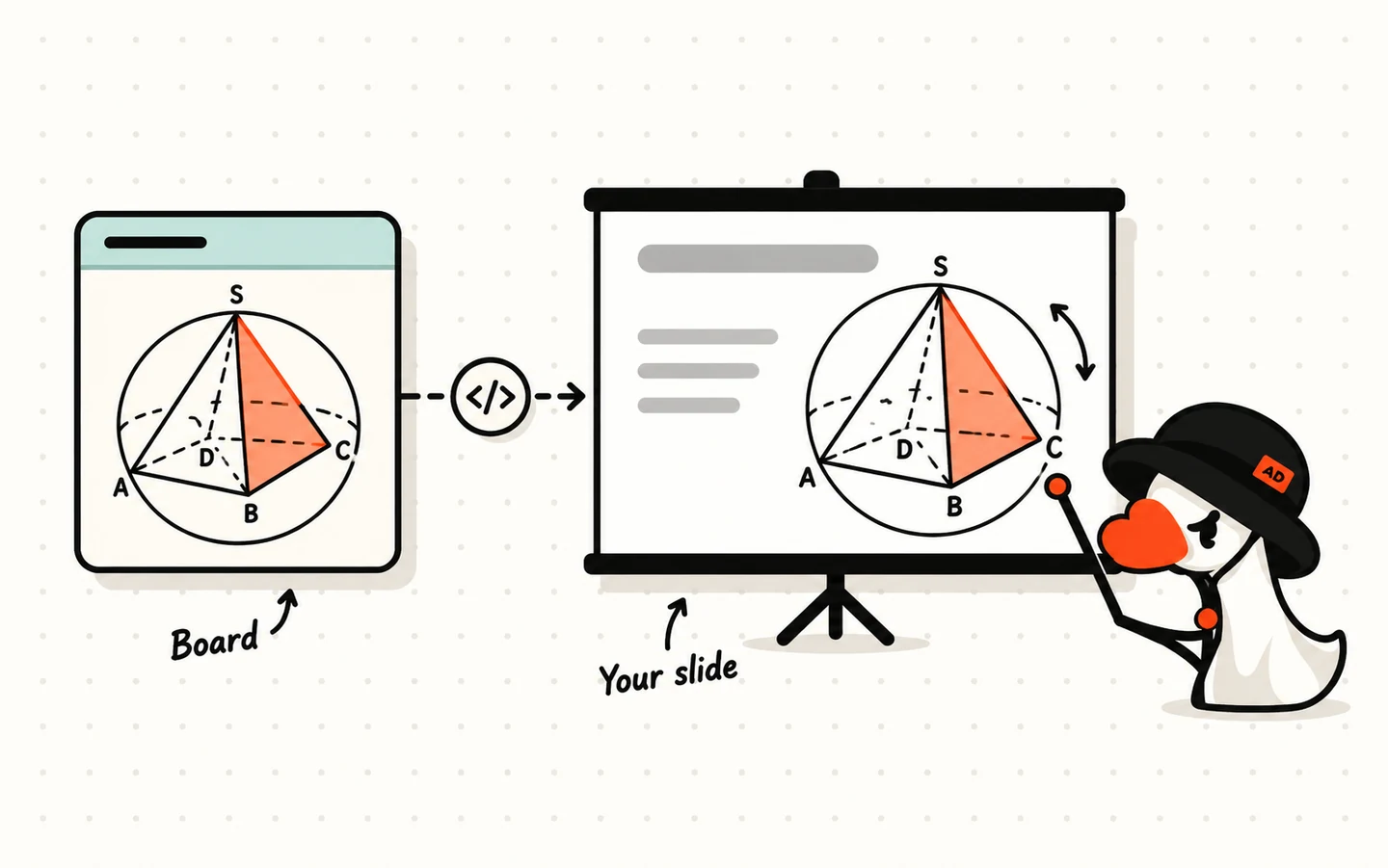
What you can make
Anything you’d draw on the whiteboard, and plenty you couldn’t:
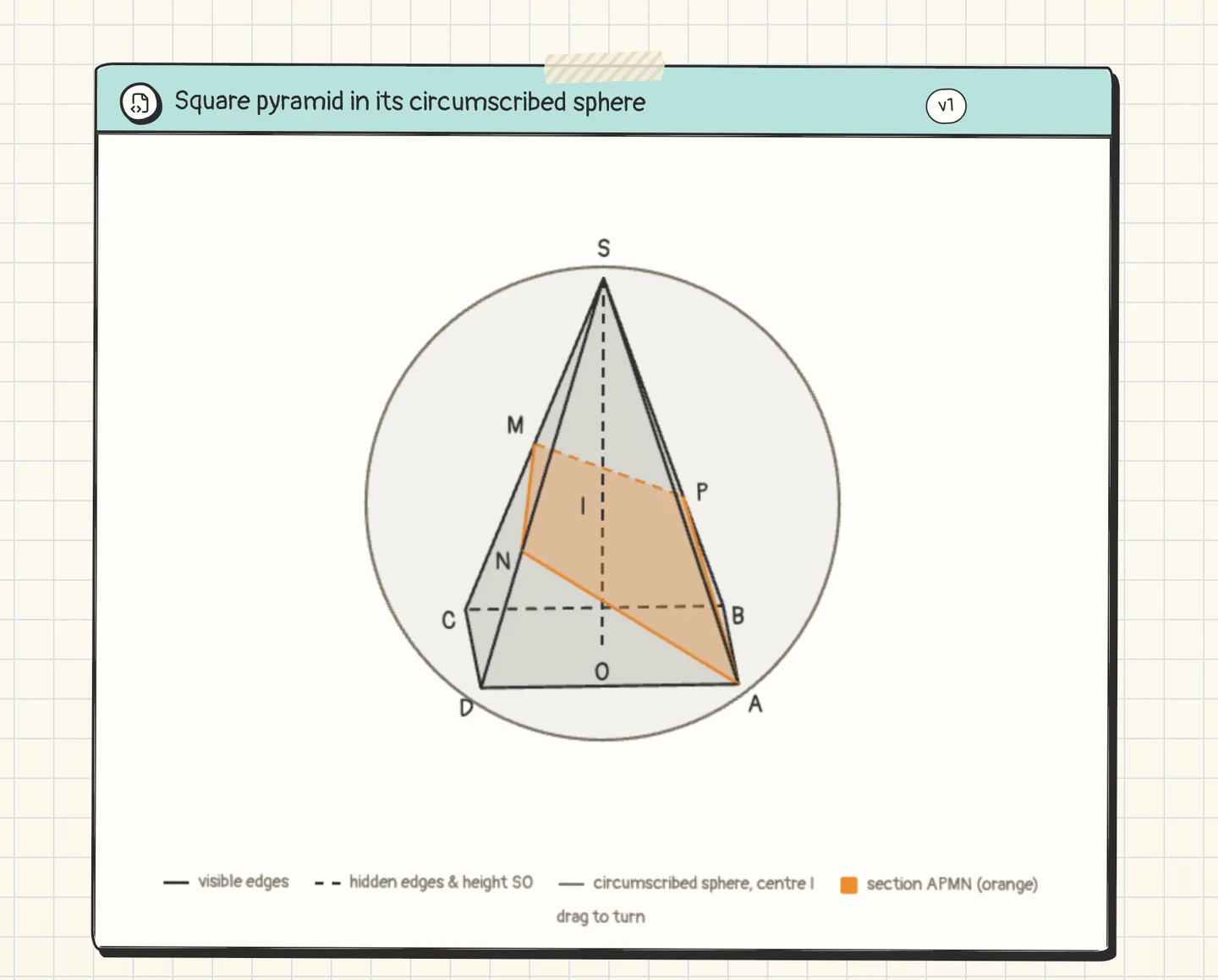
- 3D solids you can turn: pyramids, prisms, cones and spheres, with hidden edges dashed, cross-sections shaded and every point labelled.
- Graphs that move: a function with sliders for its parameters, so the class sees what changing
areally does. - Simulations: a pendulum, a projectile, a circuit, waves. Change a value and watch what happens.
- Diagrams and timelines: a labelled cell, the water cycle, the causes of a war laid out in order.
- Charts from your data: paste the class’s results and get a chart back.
Each visual is a tile on a board. You can have several tiles on one board, such as one per step of a proof.
Ask for a visual
- Log in at app.artidock.ai and start a chat. A tutor agent is a good choice, since it already knows how to draw figures for teaching. See Agents and skills to install one.
- Describe the figure: what to draw, what to label, what to highlight and who it’s for.
- ArtiDock draws it as a tile on the board beside the chat. Drag inside a 3D figure to turn it, and scroll to zoom.
This is the request behind the pyramid above:
“I’m preparing a slide for my Year 11 class. Draw this on the board as a 3D figure we can turn around: a regular square pyramid S.ABCD inside its circumscribed sphere (centre I, on the height SO). Show the height SO, the sphere outline, and the cross-section made by the plane through A and the midpoint M of SC, parallel to BD, shaded in orange. Hidden edges dashed, all points labelled. Just draw it, no quiz.”
Fix it until it’s right
Not quite what you pictured? Say so in the same chat:
- “Make the cross-section blue.”
- “Add the inscribed sphere too, in a lighter colour.”
- “Bigger labels and thicker lines, it’s for the projector.”
The tile updates in place. The badge in its header shows the version, such as v1 or v2, and earlier versions are kept, so you can go back.
Tip: End with “just draw it” when you only want the figure. A tutor agent likes to teach, and otherwise it may ask you a question about the figure first.
Show it in class
You don’t have to leave ArtiDock to present. Hover over the tile and click Full board to let it fill the screen. Turn the figure while you talk, and click Back to the board when you’re done.
To rename a tile, double-click its title.
Put a tile in your slides
Every tile has an embed code, so you can drop a live copy of it into your slides or your class page. The copy stays interactive: students can still turn the figure or move the sliders.
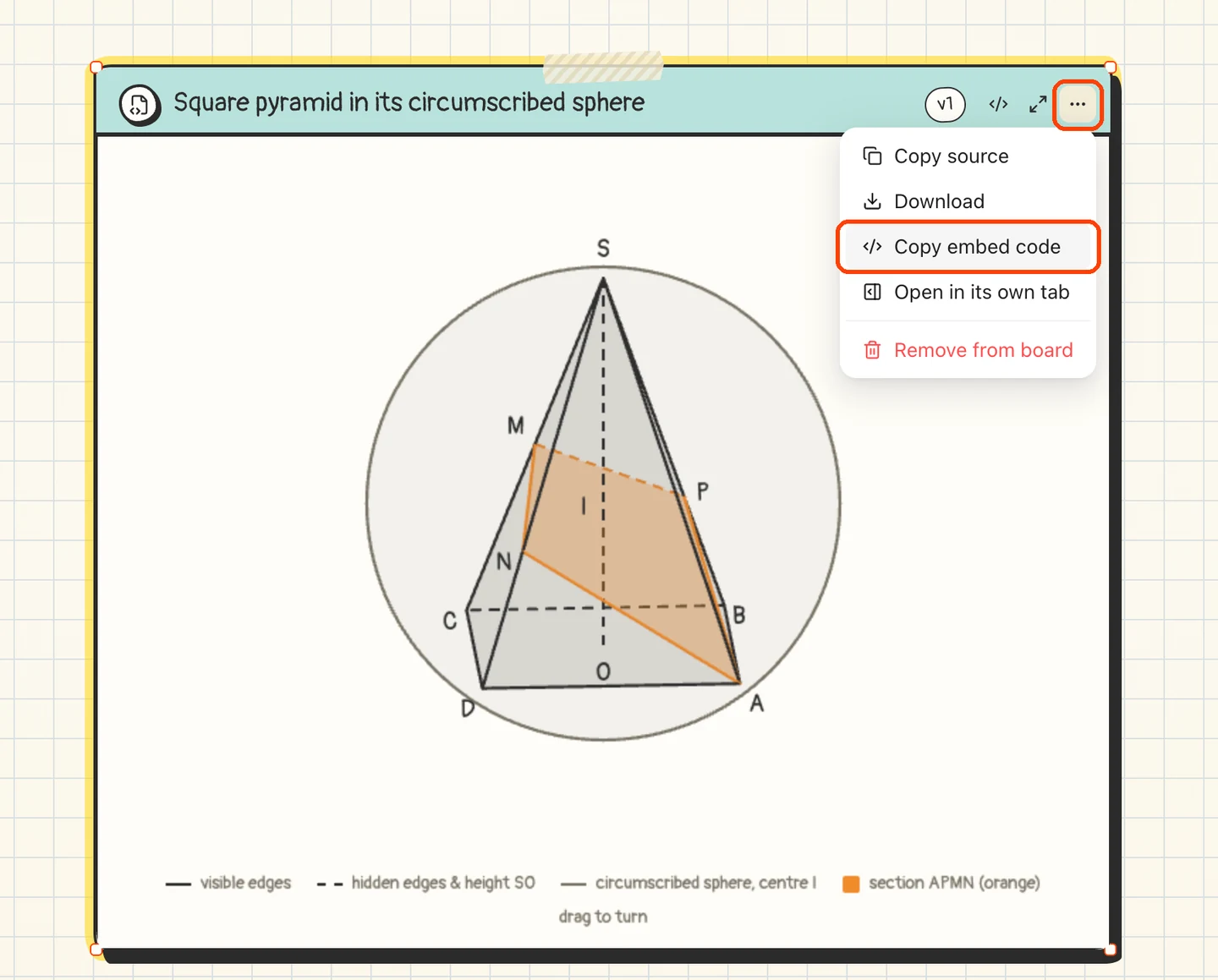
- Hover over the tile and click
⋯(More) in its header. - Choose
Copy embed code. - Go to your slide or page and paste the code where it accepts embedded content, usually under Insert → Embed.
Embed codes work in most places that show web content, such as learning platforms like Moodle or Canvas, Google Sites, Notion, blogs and online slide tools.
PowerPoint, Google Slides or Keynote? These can’t run live web content by themselves. PowerPoint can with a web viewer add-in, from Insert → Get Add-ins. Otherwise, put a screenshot of the tile on your slide and link it to the board’s share link (next section), so one click opens the live figure.
If you change the tile later, the embedded copy shows the new version too, so a fix in ArtiDock reaches every slide that uses it.
Share a whole board with a link
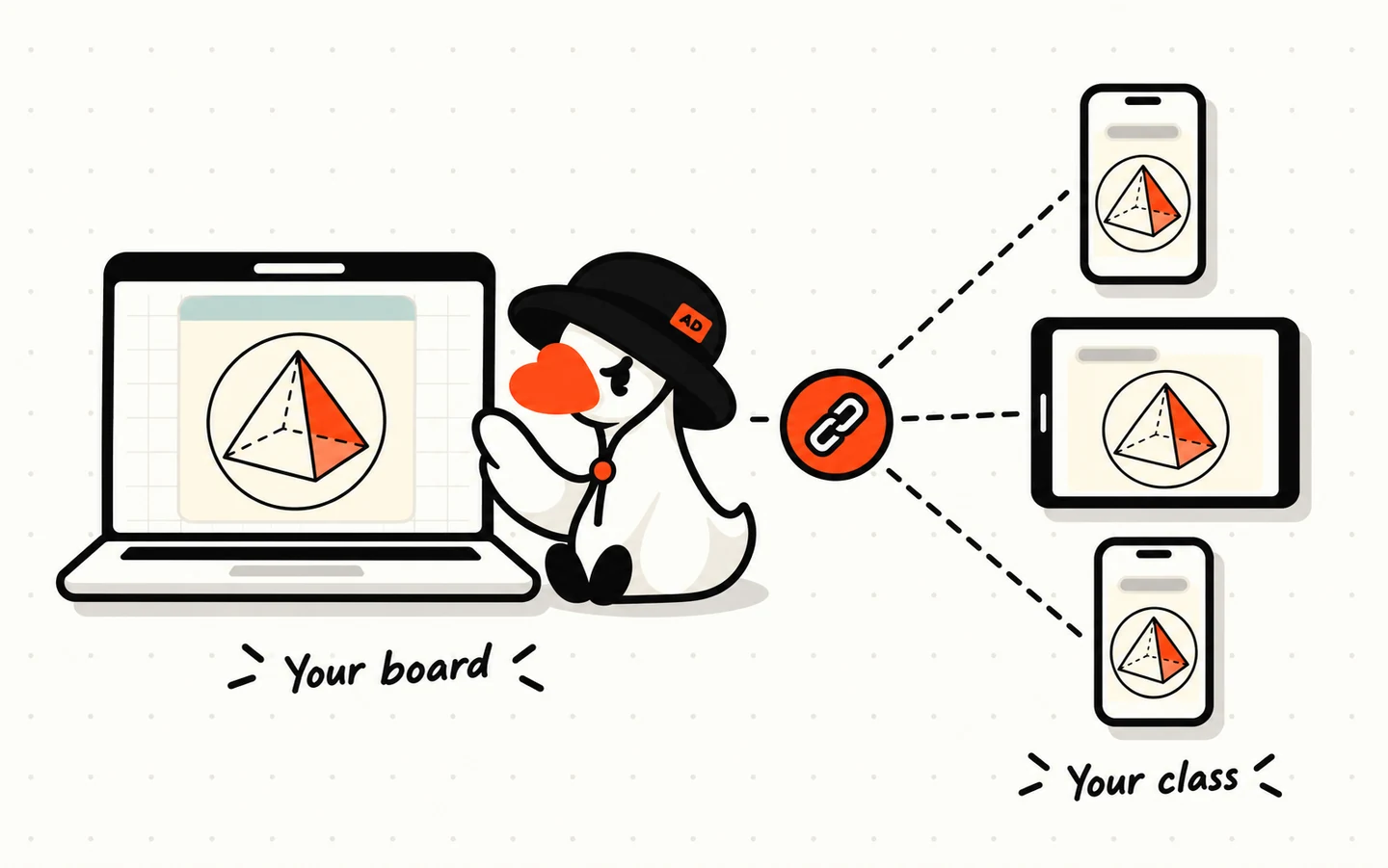
When you want students to explore the figures on their own devices, share the board instead of a single tile.
- Open the board and click
Share board, the share icon at the top right. - Click
Create link. - Click
Copy link, then send it the way you usually reach your class: a group chat, your learning platform, or a QR code on your last slide.
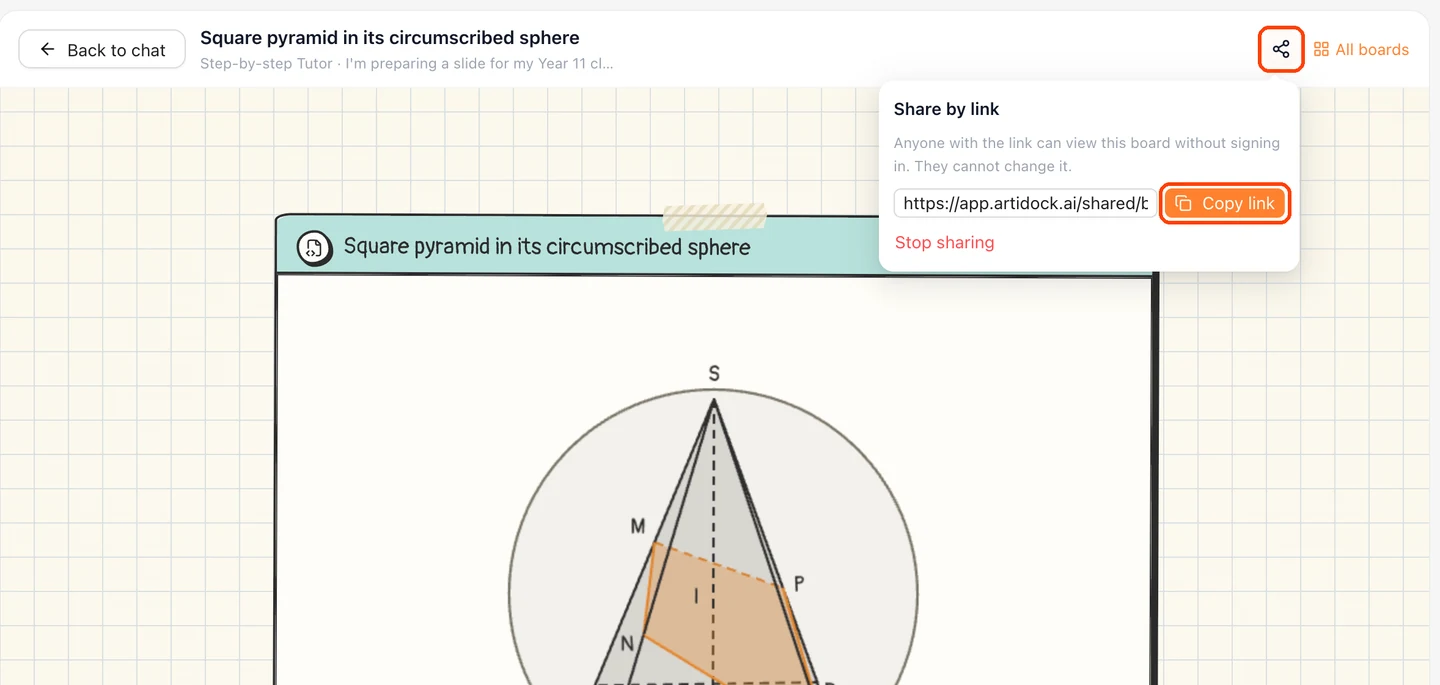
Anyone with the link can open the board without signing in. They see it as View only, so they can turn figures and play with simulations, but they can’t change anything. To turn the link off, open the same popover and click Stop sharing.
Ideas for your lessons
- Maths: cross-sections of solids, a family of graphs on one slider, transformations of a shape.
- Physics: a pendulum with adjustable length, a projectile with angle and speed, a simple circuit.
- Chemistry and biology: molecules in 3D, a labelled cell, the steps of mitosis as one tile each.
- History and geography: a timeline of a period, cause and effect laid out as a diagram.
- Step by step: one tile per step of a proof or a method, so you can reveal them in order.
Good to know
- Check before class. ArtiDock can get a figure wrong. Open it, turn it and read the labels before you put it in front of students.
- Live visuals need the internet. Embedded tiles and shared boards load from ArtiDock. Keep a screenshot on a hidden slide in case the classroom connection fails.
- A link is public. Anyone who gets the link can view the board. Don’t put names, grades or other private details on a board you share.
- Visuals use credits. Drawing and changing a visual uses your credits, the same as any other chat.