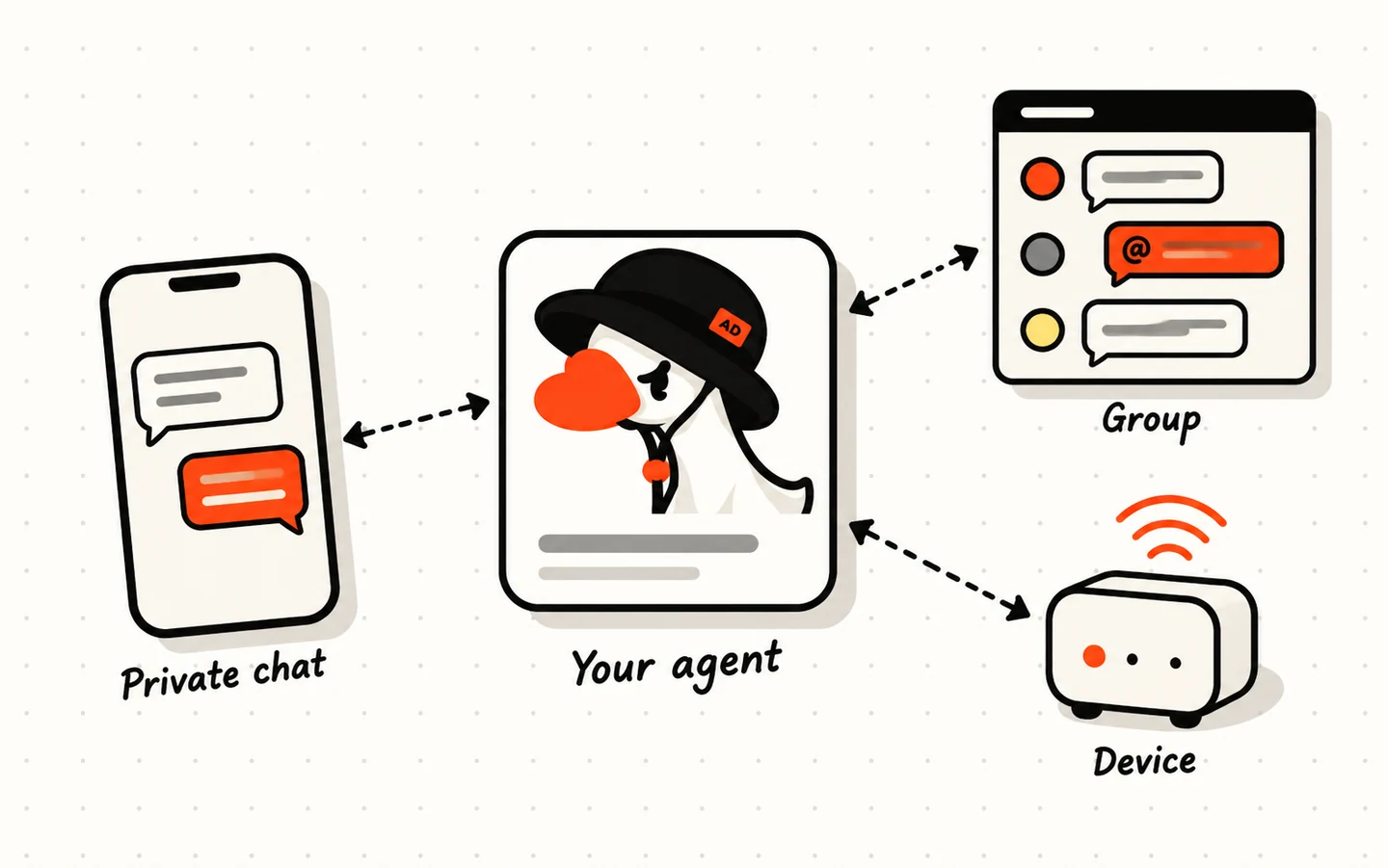
You don’t have to open ArtiDock every time you need your agent. With channels, the same agent answers you in Telegram or Zalo on your phone, in a Discord server with your team, or on a device in your home or lab. It keeps its skills, its tools and its memory of you wherever you reach it.
This guide shows how to connect each channel, what the settings do, and how to have your agent send you messages on a schedule.
What a channel is
A channel is a door into one of your agents from somewhere outside ArtiDock.
- Telegram: chat with your agent from your phone, privately or in a group.
- Zalo: chat with your agent through a Zalo Bot, right next to your other Zalo chats.
- Discord: add your agent to a server, where it answers when someone mentions it.
- MQTT: let a device, such as a sensor or a small robot, send messages to your agent and get replies back.
Each channel belongs to one agent. Your tutor can be on Telegram while your website explorer sits in your team’s Discord, and each one answers as itself.
Where to find it
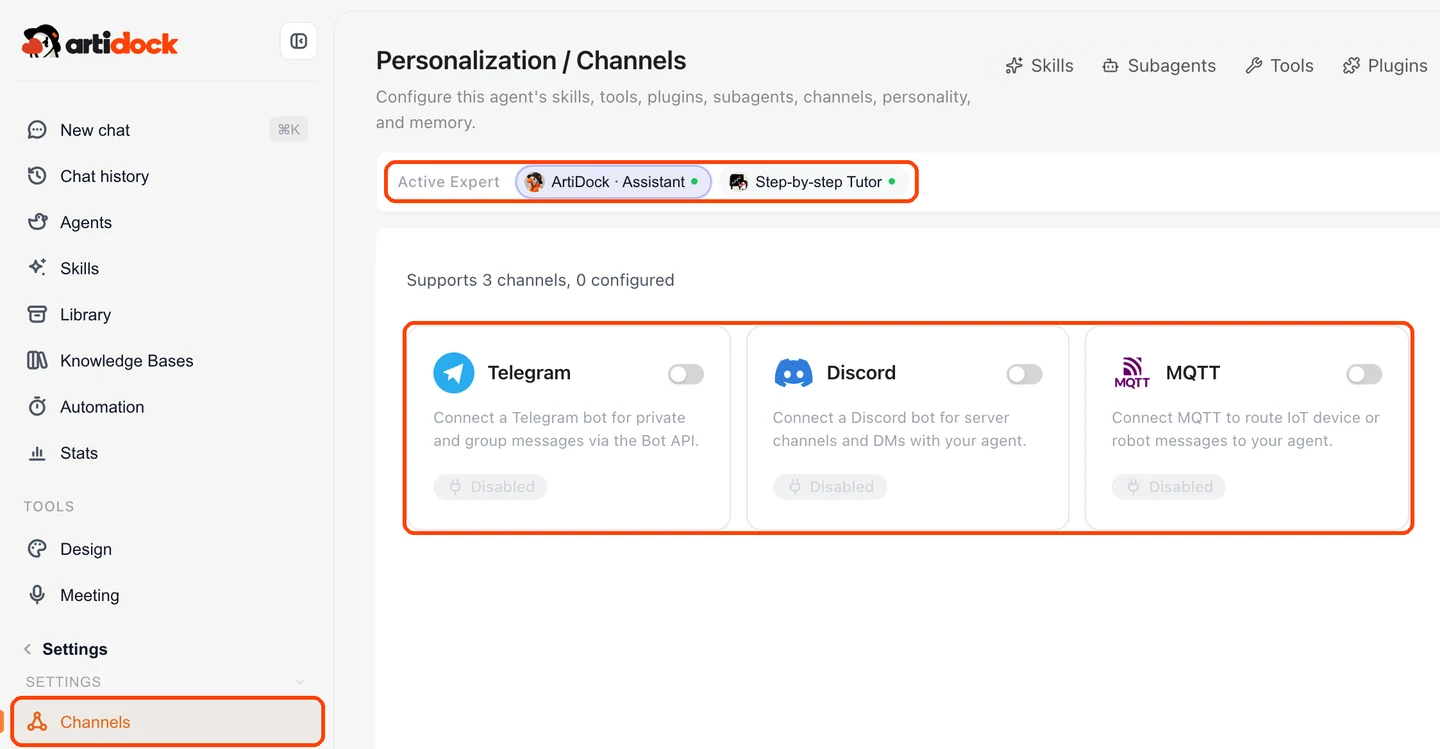
- Log in at app.artidock.ai and click
Channelsin the left sidebar, under Settings. - At the top of the page, choose the agent under
Active Expert. The channels you set up belong to that agent. - Each card shows one channel and whether it’s on. Click a card to set it up.
You can also get here from the Agents page: open the menu on an agent’s card and choose Channels.
Connect Telegram
Telegram is the quickest way to have your agent in your pocket. You make a bot in Telegram, then hand its key to ArtiDock.
1. Make a bot in Telegram
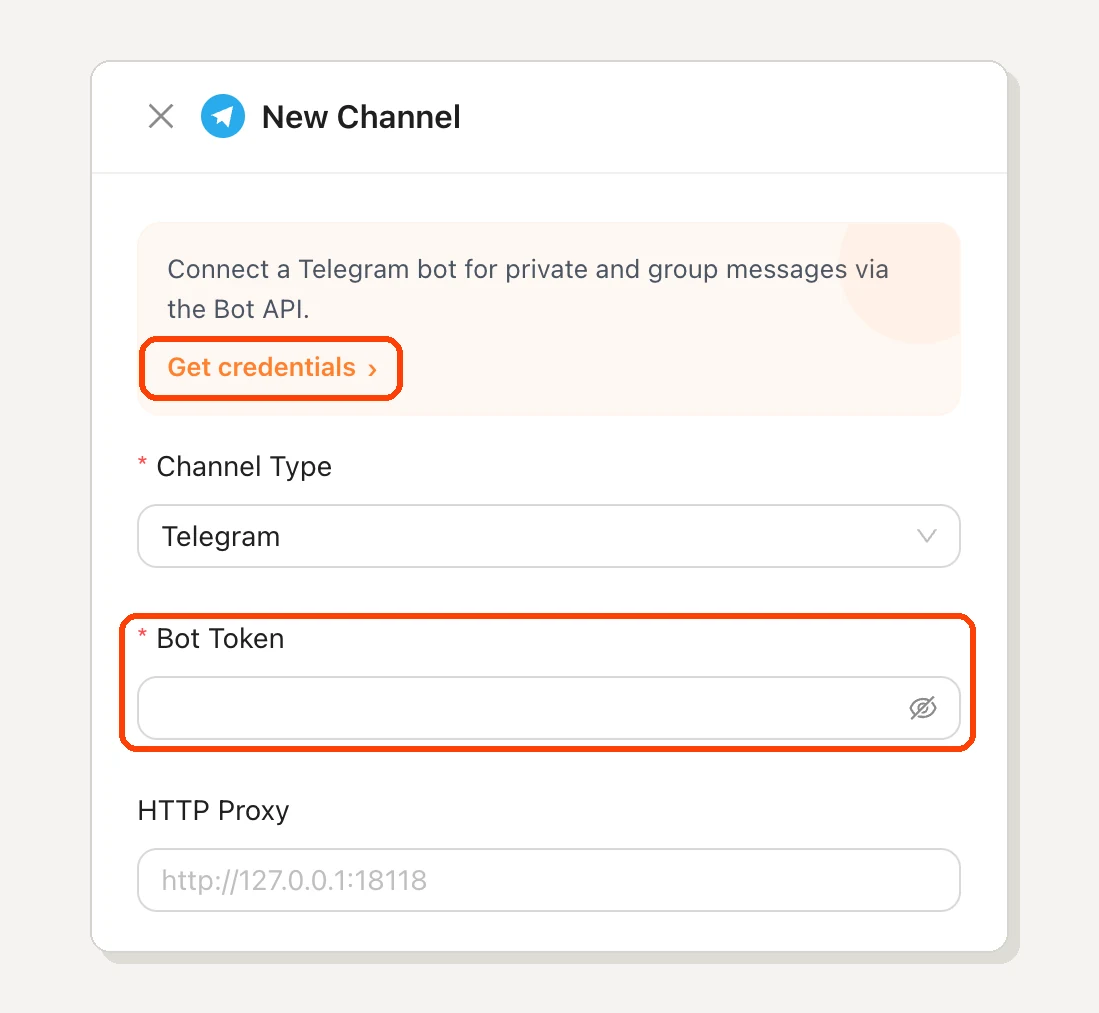
- On the Channels page, click the
Telegramcard, then clickGet credentials. It opens @BotFather, Telegram’s own tool for making bots. You can also search for @BotFather in Telegram. - Send
/newbot. - Give the bot a display name, such as “My Biology Tutor”.
- Give it a username that ends in
bot, such asmai_biology_tutor_bot. - BotFather replies with a token: a long line of letters and numbers. Copy it.
Keep the token secret. Anyone with it can take control of your bot. If it ever leaks, send
/revoketo BotFather to get a new one, and paste the new one into ArtiDock.
2. Connect it to your agent
- Paste the token into
Bot Token. LeaveHTTP Proxyempty unless your network needs one. - Click
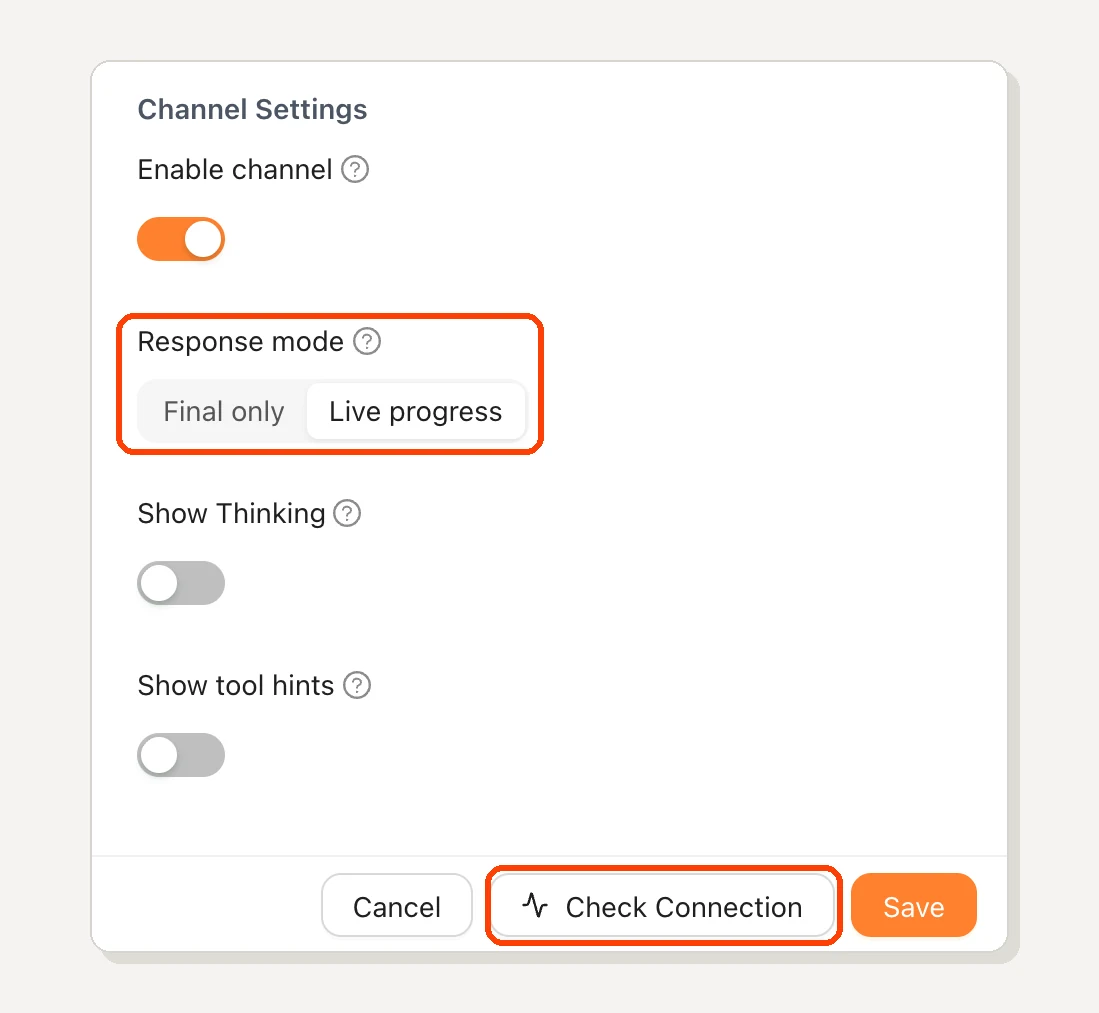
Check Connectionto test the token before you save. - Click
Save. The card now showsConnected.
3. Say hello
Open Telegram, search for your bot’s username and send it a message. Your agent answers right there.
- In a private chat, just talk to it as you would in ArtiDock.
- In a group, add the bot to the group, then mention it (
@mai_biology_tutor_bot) or reply to one of its messages to get an answer. - Send more than text. Photos, files, voice messages and videos all reach your agent, so you can snap a worksheet and ask about it.
Who can talk to it? Anyone who finds your bot can send it messages, and your agent answers them on your account. Share the bot’s username only with people you want using it, and don’t add it to big public groups.
Connect Zalo
Zalo works much like Telegram: you make a Zalo Bot inside the Zalo app, then give its token to ArtiDock.
- In Zalo, search for the official account Zalo Bot Manager and open it.
- In its chat menu, tap Tạo bot. This opens Zalo Bot Creator.
- Give your bot a name. It has to start with “Bot”, such as “Bot Biology Tutor”.
- Tap Tạo Bot. Zalo sends the bot’s details, including its Bot Token, to you as a chat message.
- Back in ArtiDock, click the
Zalocard, paste the token intoBot Token, clickCheck Connection, thenSave.
Now find your bot in Zalo and send it a message. Your agent answers right there.
Same rule as Telegram: keep the token secret, and share the bot only with people you want using it.
Connect Discord
On Discord, your agent joins a server like any other member and answers when someone mentions it. That makes it a good fit for a team or a study group.
1. Make a bot on Discord
- On the Channels page, click the
Discordcard, then clickGet credentials. It opens the Discord Developer Portal. - Click New Application and give it a name.
- Open Bot, click Reset Token and copy the token.
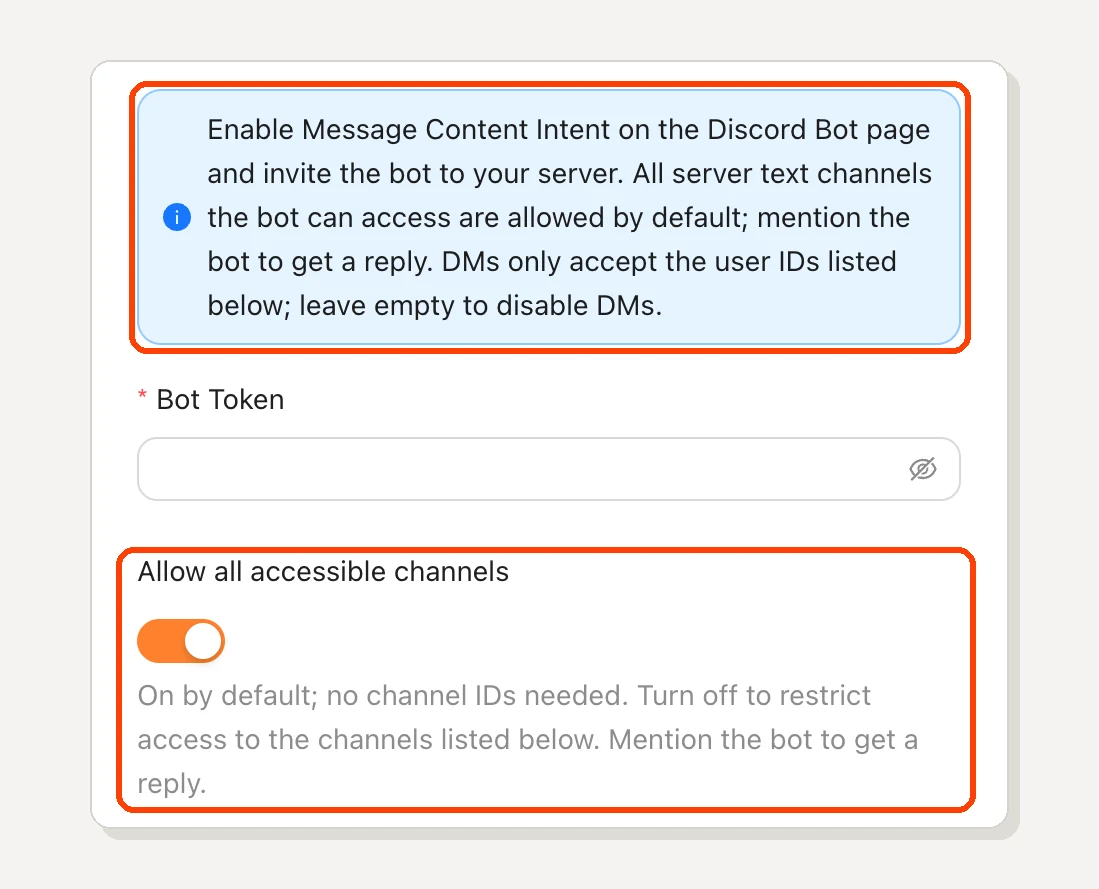
- On the same page, switch on Message Content Intent. Without it, the bot can’t read what people write.
- Open OAuth2, then URL Generator. Tick bot, then tick Send Messages, Read Message History and Attach Files. Open the link it makes and add the bot to your server.
2. Connect it to your agent
- Paste the token into
Bot Token. - Choose where the bot may answer:
Allow all accessible channelsis on by default. The bot answers in every text channel it can see.- To keep it to a few channels, switch that off and list the channel IDs under
Allowed channel IDs.
- Under
Allowed DM user IDs, list the people who may message the bot directly. Leave it empty and the bot won’t answer direct messages at all. - Click
Check Connection, thenSave.
Finding an ID: in Discord, open Settings → Advanced and switch on Developer Mode. Then right-click a channel or a person and choose Copy ID.
3. Use it in your server
Mention the bot in any channel it’s allowed in: “@Tutor can you check my answer to question 3?”. The bot also reads the last few messages before the mention, so it knows what the conversation is about. Messages that don’t mention it are left alone.
Connect a device with MQTT
MQTT is the message system many smart devices and robots already speak. Connect it when you want a device to ask your agent something and act on the reply. This part is for people who build or run their own devices.
You need an MQTT broker that ArtiDock can reach over the internet. Fill in:
Broker Host, andPortif it isn’t the usual 8883. The connection is encrypted.UsernameandPassword, if your broker asks for them.Subscribe Topic: where your devices send messages. The default isdevices/+/in.Publish Topic: where replies go. The default isdevices/{client_id}/out.
With the defaults, a device called greenhouse-1 sends its message to devices/greenhouse-1/in, either as plain text or as JSON like {"text": "Soil is dry, should I water?"}. The agent’s reply arrives on devices/greenhouse-1/out. Each device gets its own conversation with the agent.
Channel settings
Every channel has the same settings under Channel Settings:
Enable channel: switch the channel off without losing its setup. The switch on the card does the same.Response mode:Live progresssends what the agent is doing as it works, step by step.Final onlywaits and sends one finished answer, which is tidier in a busy group.Show Thinking: also sends the agent’s reasoning. It’s off by default.Show tool hints: also sends short notes on which tools the agent is using.
Show Thinking and Show tool hints only work with Live progress.
Is it working?
The card on the Channels page shows the channel’s state:
Connected: the channel is on and working.Disconnected: the channel is on but can’t connect. Hover over it to see why, which is usually a wrong or revoked token. Paste a fresh token and clickCheck Connection.Disabled: the channel is switched off.
To remove a channel completely, click its card and choose Delete.
Get messages on a schedule
This is where channels shine. Your agent can message you first, at the time you choose, wherever you are.
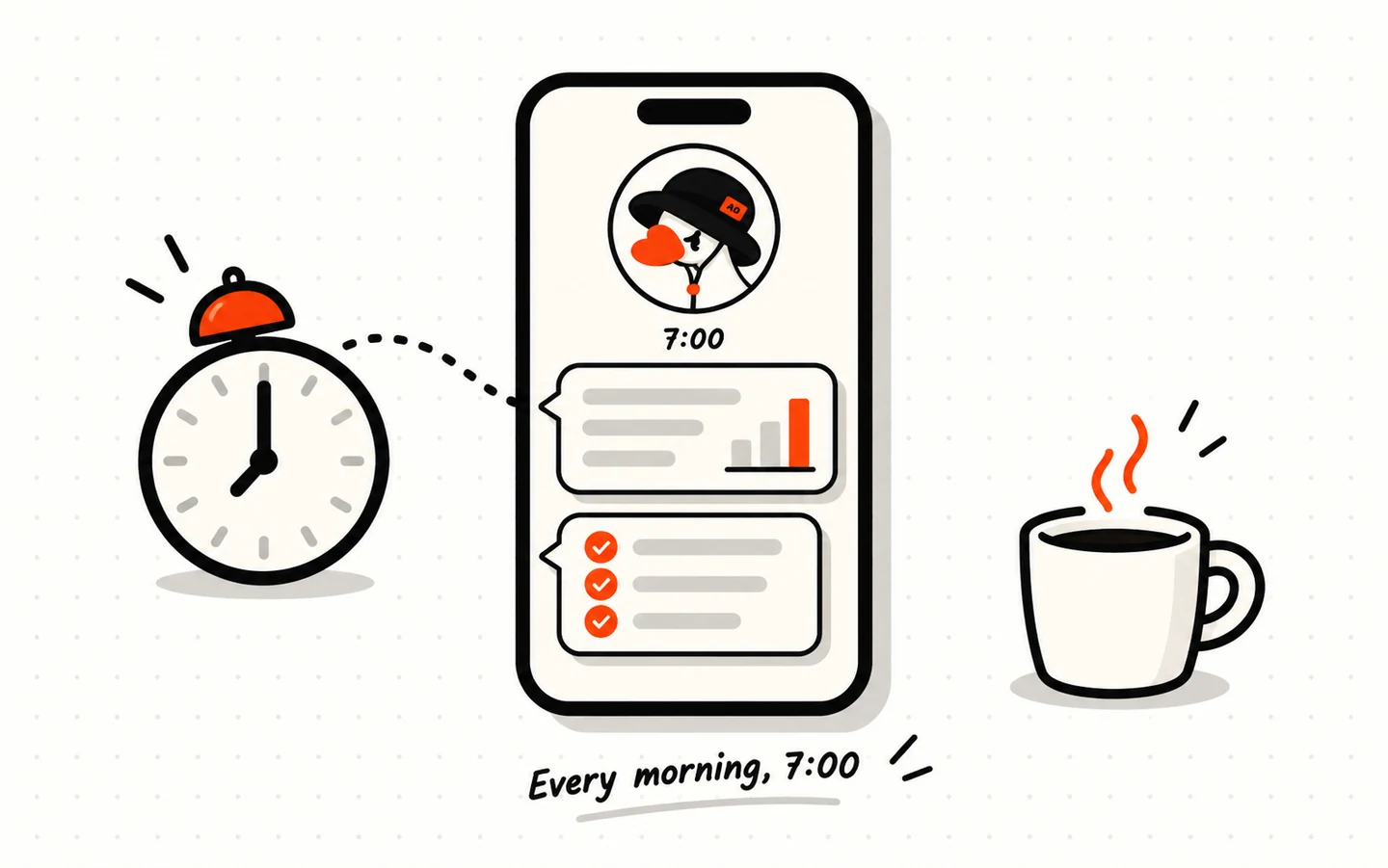
Just ask in the chat app itself: “Every morning at 7, send me a short summary of the day’s weather and my three most important tasks”. Your agent sets up a scheduled task and posts the result into that same chat every morning.
A few ideas:
- A reminder to drink water, every afternoon at 2.
- A vocabulary word with an example sentence before school.
- A weekly report of how a website is doing, sent to your team’s Discord every Monday.
You can see, pause and change these tasks under Automation in the left sidebar. You can also make one there: click Create Job, switch off Fresh thread each run, and choose the chat app conversation under Target session.
Good to know
- It’s the same agent. Skills, tools, knowledge bases and memory all work in a channel just as they do in the app.
- Conversations are saved. Chats from Telegram, Zalo and Discord show up in your
Chat history, marked with the app’s icon, so you can open one in ArtiDock and carry on there. - Some things belong in the app. A chat app shows text, pictures and files. For boards and interactive tiles, open the conversation in ArtiDock.
- One bot, one place. Use each bot token for one agent only. If the same token is used somewhere else at the same time, the connection drops.
- Channels use credits. Answers in a channel use your credits the same way chatting in the app does.